How to Handle Insurance Claim Jobs and Split Invoices in ZartonAI
Keep the vehicle and the claim on the job, then bill the customer their deductible and the insurer the rest from one invoice

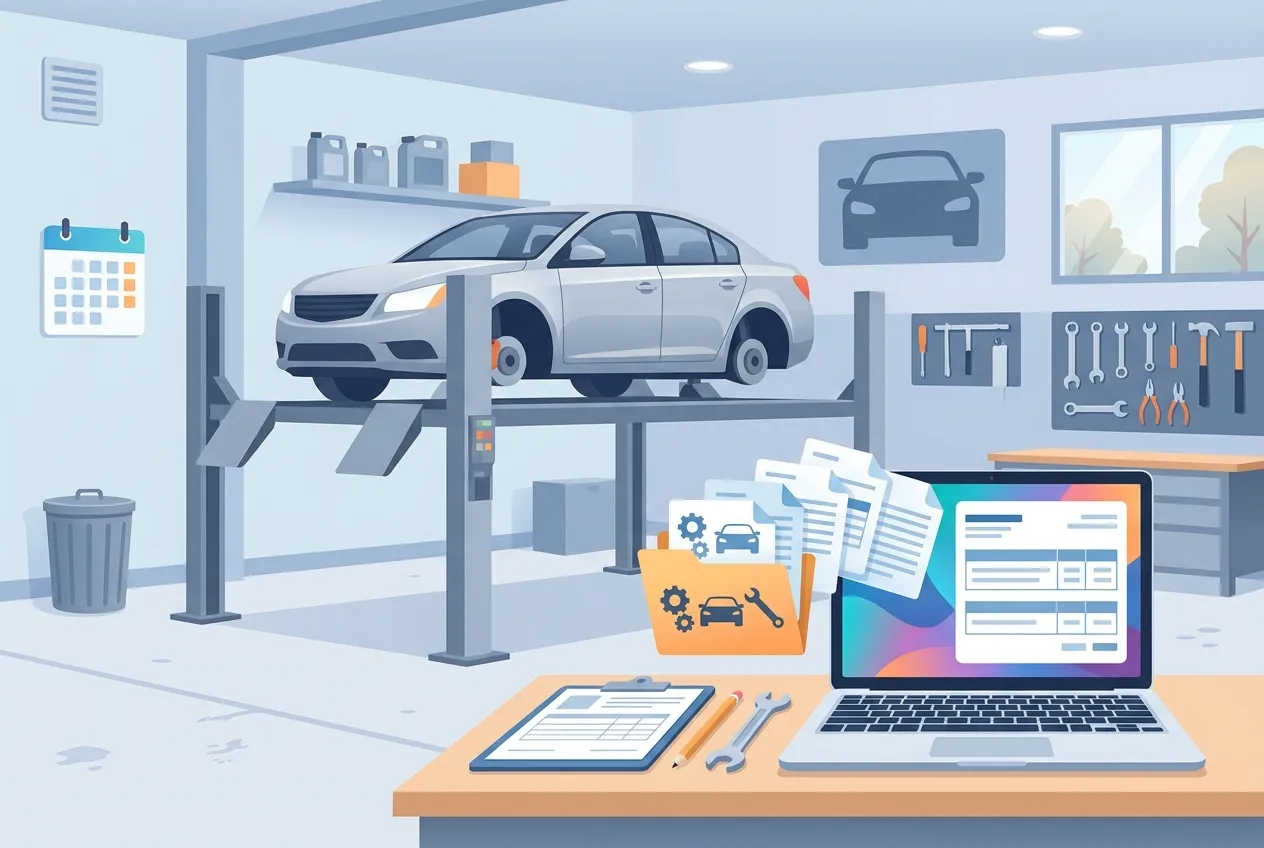
The car is fixed, the customer wants their keys, and now the real work starts: one bill, two payers. The customer owes the deductible, the insurance company owes the rest, and somebody in the office has to keep the two straight for weeks.
Insurance work is good work, but the paperwork is where shops lose time and money. The claim number lives on a sticky note, the adjuster's email is buried in someone's inbox, and the customer gets a reminder for money the insurer still owes. Insurance claim jobs and split invoices in ZartonAI fix that. You keep the vehicle and the claim on the job itself, then split the final invoice so the customer and the insurer each see, pay and get reminded about only their own part.
This guide is written for collision and auto body shops, where the feature was built first, and walks through the whole path from intake to a fully paid job.
What you get with insurance claim jobs
| Part | What it holds or does |
|---|---|
| Vehicle on the job | VIN, year, make, model, trim, color, paint code, plate and state, mileage, photos and notes. The VIN is checked as you type it, and the model year is read from it. |
| Insurance claim on the job | Insurer, claim number, policy number, deductible, date of loss, and the adjuster's name, email and phone. |
| Vehicle & claim panel | Everything above, in one place on the job page. |
| Split invoice | One invoice, two payers: the customer's part and the insurer's part, each sent, paid and tracked separately. |
How to run an insurance claim job and split the invoice in ZartonAI
Switch on the Vehicle and Insurance claim tabs
These two tabs on the job form only appear once your workspace uses them, so shops that never touch insurance don't see extra fields. Installing the auto body trade pack switches them on, and so does saving your first vehicle. The pack also brings auto body labour rates, collision repair services, a repair authorization covering the insurer, deductible, supplements, storage and lien, and a Collision repair checklist from intake to delivery. Our guide to setting up pricing with trade packs explains how packs install.
Create the job and add the vehicle
Open a new job for the customer and fill in the Vehicle tab. Type the VIN and ZartonAI checks it: 17 characters, none of the letters I, O or Q, and a valid North American check digit. A typo is refused before it reaches the insurer's paperwork. The model year fills in from the VIN, and mileage can be typed with a comma. Each VIN is saved once, so when the same customer brings the same car back, it's found again for the new job.
Fill in the insurance claim
On the Insurance claim tab, enter the insurer, the claim and policy numbers, the deductible, the date of loss and the adjuster's contact details. From now on the job page shows a Vehicle & claim panel, so anyone in the office can answer "what's the claim number on the silver SUV?" without digging.
Estimate and invoice the work as usual
Write the estimate and bill the job the same way you would any other (see creating and sending estimates and invoicing customers and getting paid). The split happens on the invoice, not the estimate.
Split the invoice with the insurer
On the invoice page, choose Split with insurer. The insurer, adjuster email and claim number come in from the job's claim, and the customer's part starts at the deductible. Change it if the customer also owes for betterment or extras they asked for. The invoice total never changes, so you still can't bill more than was agreed. A panel on the invoice then shows both parts side by side, and you can change the split later.
Send each payer their part
Send the invoice to the customer as normal; it tells them their part. Then choose Send to insurer. ZartonAI emails the adjuster the invoice with the claim number, the customer, the vehicle and what the insurer owes. It goes to the adjuster's email on the claim unless you enter another address.
Record payments by who paid
When money arrives, open Record payment and pick who it's From: the customer or the insurer. Each payer can only be recorded up to their own part, so a customer overpayment is refused instead of quietly eating into the insurer's share.
Let the job close itself
The invoice counts as paid, and the job closes, only when both parts are paid. Until then, you can see at a glance which side still owes.
What the customer sees
The customer is never chased for the insurer's money. Payment reminders, sent by hand or automatically, ask only for the customer's part and stop once that part is paid. Their statement shows a Billed to insurer line, leaves out the insurer's payments, and ages the balance on their part only. In your customer portal they see "your part", not the full repair bill.
Tips and common mistakes
Tip: fill in the claim at intake, not at billing. The split takes its defaults from the job's claim. If the deductible and adjuster email are already on the job, splitting the invoice is one click.
Tip: put betterment in the customer's part. If the insurer won't pay for an upgrade or extra the customer asked for, raise the customer's part above the deductible when you split, so each side is billed for what they actually owe.
Mistake: recording the insurer's check as a customer payment. Always set who the payment is from. Otherwise the customer's balance and statement will be wrong, and their reminders will stop too early or keep going too long.
Mistake: skipping the VIN. Without it, the vehicle won't be found again on the customer's next visit, and the insurer's email won't carry the vehicle details adjusters look for.
Do it with Claude
With Claude connected to ZartonAI, the front desk can handle claim paperwork in plain language. Claude reads the job or invoice first, sets claim and vehicle details, splits invoices, and records exactly the payment you describe. Emailing the customer or the insurer reaches people outside your business, so it only works when "Allow actions" is switched on for the connection, and Claude sends only after you say so.
"Add the claim to JOB-41: State Mutual, claim 7781-22, $500 deductible, loss date October 12, adjuster Dana Price, dana@example.com."
"Put the vehicle on that job: VIN 1HGCM82633A004352, 48,200 miles."
"Split INV-58 with the insurer. The customer also pays $180 for the upgraded headlights."
"Send the insurer its part of INV-58."
"State Mutual paid $3,940 by bank transfer, reference SM-20931. Record it on INV-58 as from the insurer."
"What's still owed on INV-58, and by whom?"
FAQ
Do I need the auto body trade pack to use insurance claims?
The pack is the quickest way to switch the Vehicle and Insurance claim tabs on, but saving a vehicle on a job switches them on too. The pack also adds collision repair services, rates, a repair authorization and an intake-to-delivery checklist.
Can the customer's part be more than the deductible?
Yes. The customer's part starts at the job's deductible, and you can change it when you split the invoice, for example to add betterment or extras the insurer won't cover. The invoice total stays the same.
Will my automatic reminders chase the customer for the insurer's money?
No. Reminders ask only for the customer's part and stop once it's paid, whether they're sent by hand or automatically.
When does the job count as paid?
Only when both the customer's part and the insurer's part are paid. Then the invoice is paid and the job closes on its own.
Stop juggling claim numbers and sticky notes. Put your next insurance job on a single record and split the bill in one click at zartonai.com. New to ZartonAI? Start with running jobs from first call to final invoice.






Comments
No comments yet — be the first to share your thoughts.
Join the discussion