How to Book and Manage Customer Appointments in ZartonAI
Appointment types, team availability, blackouts, real open times and no double-booking — plus how to schedule by just asking Claude

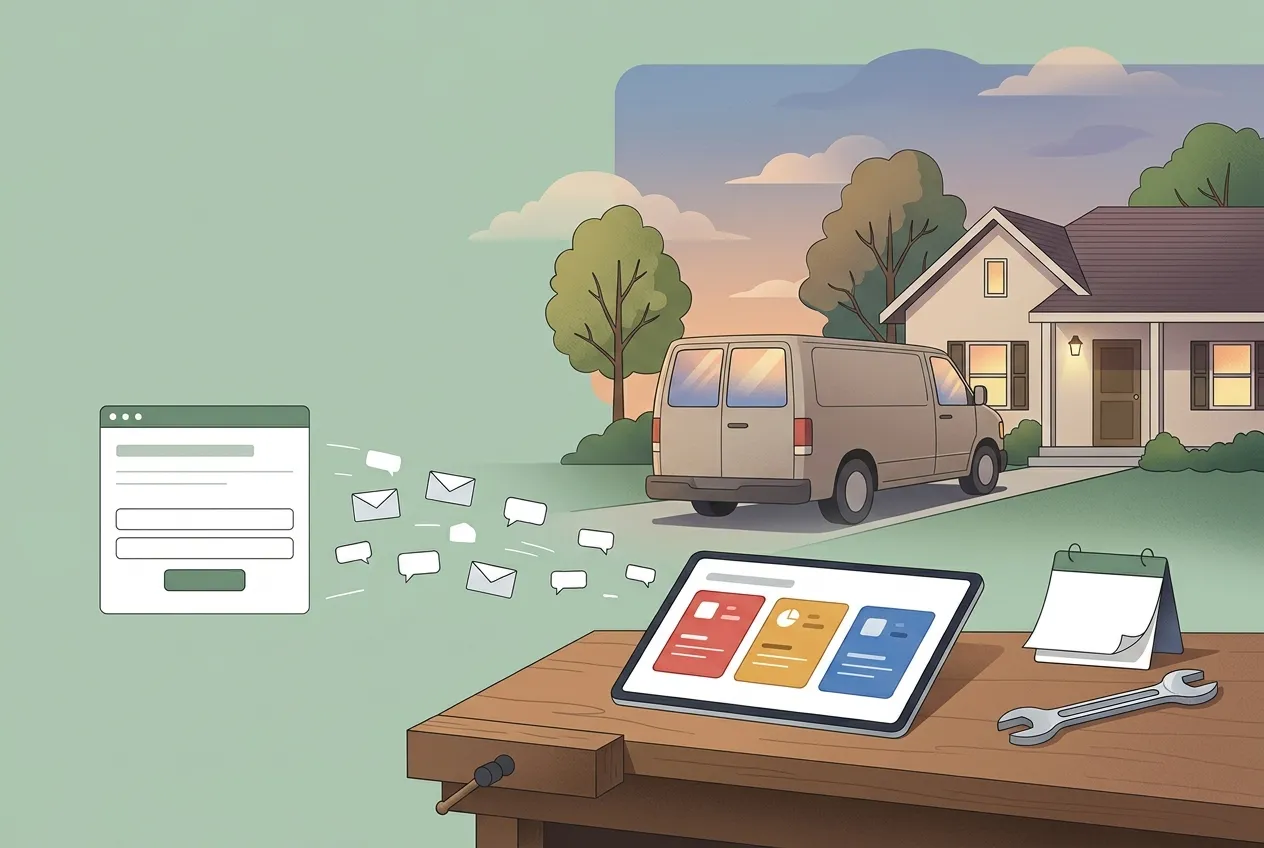
A customer calls about a furnace that won’t light. Whoever answers flips through a paper calendar, texts two techs to ask who’s free, and promises “Tuesday morning.” Then Tuesday arrives and two people are booked into the same nine o’clock slot, nobody is sure which tech is going, and the customer gets a call saying you’ll be late. Scheduling mistakes like that cost more than a lost hour — they cost trust.
This guide shows you how to use appointments in ZartonAI to book and manage customer visits: set up your appointment types and bookable team members, block off holidays and days off, offer customers only real open times, and follow every visit from pending to completed — without double-booking anyone.
How to book and manage appointments in ZartonAI
- Add the services you offer. Open Settings → Services and list the kinds of work customers book: repair, diagnostic visit, maintenance, estimate walk-through, inspection. Clear service names make it easier for the office — and Claude — to match a caller’s problem to the right person.
- Set up your locations and team. Add the places you work from, such as your main shop or a second branch, and the team members who go out on calls. Mark the people customers can be booked with as bookable and link each one to the location they work from.
- Create your appointment types. In Appointments, create a type for each kind of booking, for example “Service Call” or “Estimate Visit.” A type can walk whoever is booking through a short chain of choices — Service → Location → Team member — so each choice narrows the next and a drain cleaning only ever lands with someone who does drain cleaning, from the right shop.
- Set weekly availability and blackouts. Give each bookable team member and resource the hours they take appointments each week. Then add blackouts for holidays, training days and vacations. Blacked-out time simply stops showing up as open, so nobody can book into it by accident.
- Check real open times before you promise one. When a customer calls, look up the open slots for the service or person on the day they want. ZartonAI lists only times that are actually free, worked out in that resource’s own time zone. Need the soonest visit instead? Ask who can do the service and when their earliest opening is; you get the nearest bookable team members with their first free slot.
- Book the appointment. Pick the time, enter who it’s for — name, email and phone — and add a short title and any notes, such as the gate code or “dog in the yard.” Each booking gets its own reference, like APT-7KQ2M9, that you can quote on the phone. When you include the customer’s email, they are emailed about the booking.
- Let ZartonAI stop double-booking. Every booking checks the resource’s availability and capacity first. If the slot is already taken, the booking is refused rather than squeezed in, and the same check applies when you move an appointment later.
- Confirm, reschedule or cancel as plans change. Customer wants Thursday instead? Reschedule to a new date and time — and, if needed, a new length. Change the title or notes, confirm a pending booking, or cancel it. Your schedule always shows the current plan.
- Close out every visit. After the call, mark the appointment completed — or no-show if nobody was home. Keeping statuses accurate turns your appointment history into a reliable record of what really happened.
- Look at the week as a whole. Open the calendar for any range of up to a month to see each day’s appointments and scheduled work, published events, and who is off. It is the fastest way to spot a packed Thursday or a tech who is out before you promise a visit.
Appointment statuses at a glance
Every appointment carries one status. Using them consistently tells the office exactly where each visit stands.
| Status | What it means | Typical next step |
|---|---|---|
| Pending | Requested or booked, not yet confirmed | Confirm the time with the customer |
| Confirmed | Agreed with the customer and on the schedule | Show up; reschedule if plans change |
| Completed | The visit happened | Turn the work into a job, estimate or invoice |
| No-show | You arrived and nobody was there | Call back and rebook |
| Cancelled | Called off by you or the customer | Nothing — the slot is open again |
How appointments fit with leads and jobs
Appointments are usually the moment a lead becomes real work. When a request comes in through your website, you can capture, rate and answer the lead, then book the diagnostic visit or estimate walk-through straight from the conversation. After the visit, the findings feed your estimate, and an accepted estimate becomes a job you can run from first call to final invoice. Appointments also count toward your team’s workload, so when you check who is covering what this week, booked visits are part of the picture.
Tips and common mistakes
- Add blackouts before you need them. Enter holidays and planned time off as soon as you know about them, not the morning of. Once they’re in, those hours stop being offered.
- Check availability, don’t guess. Read the open times before promising a slot on the phone. It takes seconds and saves the awkward call-back.
- Always capture contact details. An email and phone number on every booking means you can reach the customer if the tech is running late — and the customer hears from you about the booking.
- Put site details in the notes. Gate codes, parking, pets and “use the side door” belong on the appointment, where the tech will see them.
- Don’t leave visits “confirmed” forever. Mark them completed or no-show at the end of the day so your history and workload numbers stay honest.
- Keep appointment types few and clear. Two or three well-named types with the Service → Location → Team chain beat a dozen near-duplicates nobody can tell apart.
Do it with Claude
ZartonAI works with Claude through the Zarton connector, so you or your office manager can schedule by simply asking. Claude checks real open times first, offers them to you, and books only the slot you choose. Booking, rescheduling and cancelling reach your customers, so they only work once you have switched on Allow actions for the connection. Types, the Service → Location → Team chain, weekly availability and blackouts are still set up by an admin in the Appointments screens. Try requests like:
“What’s booked tomorrow, and is anyone off this week?”
“Who can do a water heater repair, and what’s the earliest opening?”
“Show me open times next Tuesday.”
“Book Maria Lopez at 10:30 on Tuesday for a furnace diagnostic — maria@example.com, 555-0142, gate code 4417.”
“Move the Lopez appointment to Thursday at 2pm.”
“Mark this morning’s Oak Street visit as a no-show.”
Learn more on our Works with Claude page.
Frequently asked questions
Can ZartonAI stop two customers being booked into the same slot?
Yes. Every booking checks the resource’s availability and capacity, and a slot that is already taken is refused. Rescheduling runs the same check.
How do I block off holidays or a technician’s day off?
Add a blackout in the Appointments screens. Blacked-out time no longer shows up as open, so it can’t be booked.
Can I find the soonest technician for a particular service?
Yes. Ask who can perform the service and when; ZartonAI returns the nearest bookable team members with their earliest open slot, and you can look further ahead if none of them suit.
Can Claude set up my appointment types and working hours?
No. Claude can read your schedule, find open times and book, move or cancel appointments, but appointment types, the Service → Location → Team chain, weekly availability and blackouts are configured by an admin in the Appointments screens.
Does the customer hear about the booking?
When you include the customer’s email address, ZartonAI emails them about the booking. That is also why booking from Claude needs “Allow actions” switched on.
Related reading
Stop promising times you can’t keep. Set up your services and team in ZartonAI, add your blackouts, and book every call into a real open slot.
Try it at zartonai.com








Comments
No comments yet — be the first to share your thoughts.
Join the discussion