How to Invoice Customers and Get Paid in ZartonAI
Deposit, progress and final invoices from your estimates, payments recorded in seconds, and a clear view of who still owes you
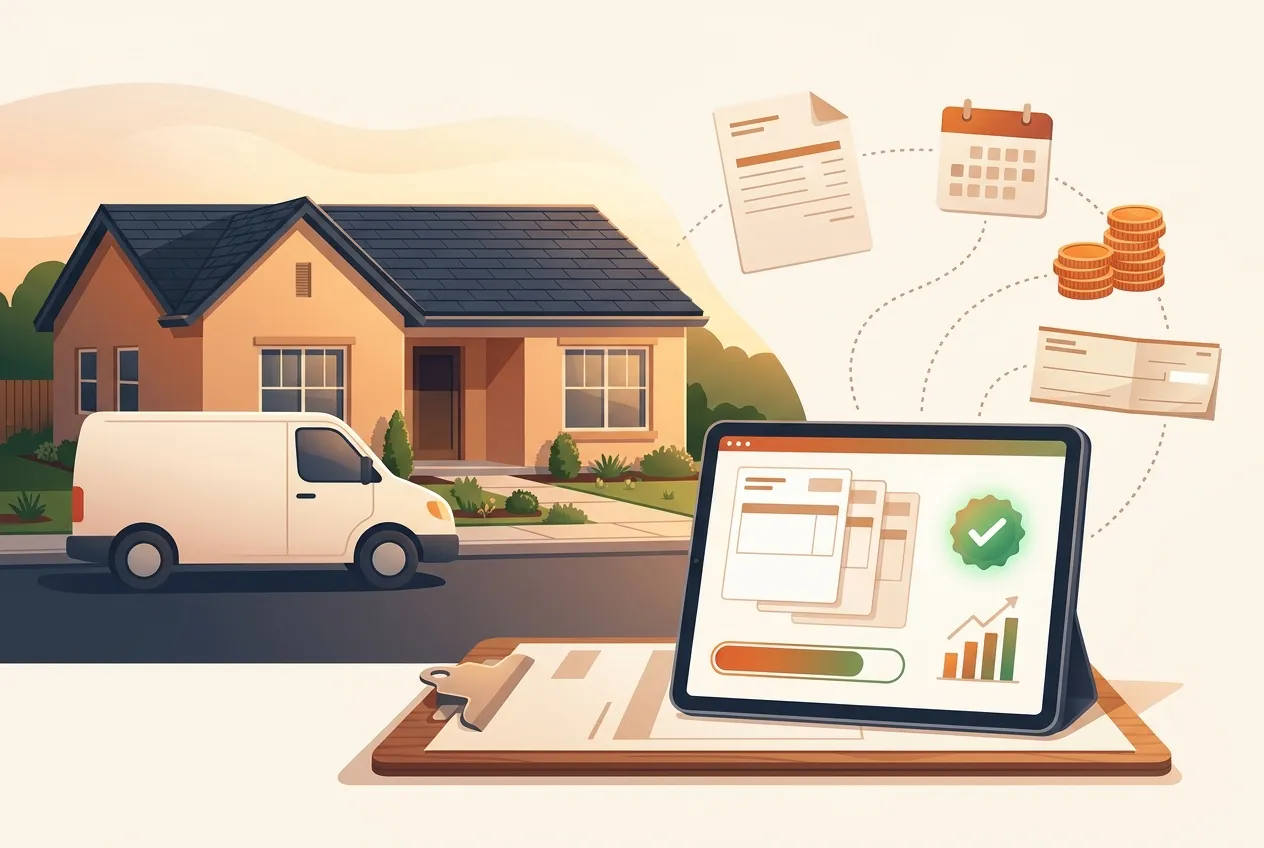
You finished the job, the customer is happy, and the money is still not in the bank. For a lot of electricians, plumbers, HVAC techs and contractors, the slowest part of the work is the paperwork after it: typing up the invoice, remembering what the deposit covered, and working out who still owes what.
This guide shows you how to invoice customers and get paid in ZartonAI. You will see how to turn an accepted estimate into deposit, progress and final invoices, send them with a PDF, record payments as they come in, chase overdue balances, and handle credits and customer statements — all tied to the job, so the numbers always add up.
Why invoices belong with the job
When invoices live in a separate spreadsheet, every bill starts with retyping and nobody is sure whether the deposit was ever collected. In ZartonAI an invoice is attached to the job, the customer, the job site and the estimate it came from, so the work you quoted becomes the work you bill.
Each invoice gets a number like INV-12, a type (standard, deposit, progress or final), issue and due dates, and a status that moves from draft to sent, viewed, partly paid and paid — or void, with a reason, if you cancel it. Anything past its due date with money still owed shows as overdue.
How to invoice customers and get paid in ZartonAI, step by step
- Start from the accepted estimate or the job. The easiest invoice is one you don’t have to type. Open the job, or the accepted estimate on it, and make the invoice from there. It comes in linked to the right customer, job site and estimate, with the estimate’s lines filled in. No estimate, like a quick service call? Write the invoice for the job with your own lines.
- Pick the kind of invoice. Choose what this bill is for. A standard invoice bills the whole estimate. A deposit invoice bills the deposit percentage you set on the estimate (or another percentage you enter). A progress invoice bills a percentage of the estimate partway through the work. A final invoice bills whatever is left after the deposit and progress invoices already raised. ZartonAI never bills more than the accepted estimate, so you can’t double-charge by accident.
- Check the lines, due date and notes. Review each line — labour, materials, services, products or discounts — with its quantity, unit and price. The due date follows your workspace’s standard payment terms unless you change it. Add the customer’s PO number if they gave you one, a note to the customer, and internal notes only your team will see.
- Review the draft before anything goes out. Every invoice starts as a draft, and the customer receives nothing until you send it. Read it once as the customer would: is the job title clear, are the hours right, is the total what you expected?
- Send it. Sending emails the invoice from your workspace to the customer’s address on file, or another address you enter, with the PDF attached and a link to view it. Add a personal note or use the standard message. A standard or final invoice for a job with a before-and-after photo report also carries the newest report, so the customer sees the finished work next to the bill.
- Record each payment as it comes in. When money arrives, record it against the invoice: the amount, how it was paid (cash, check, card, bank transfer or other), the date and a reference such as the check number. Leave the amount empty to record the full balance. A part payment leaves the invoice partly paid with the balance still showing, and you can never record more than is owed.
- Watch who owes you, and chase what’s late. Filter your invoices by outstanding, overdue, draft, paid or void, for everyone or for one customer or job. The list starts with the totals outstanding and overdue, and each invoice shows its balance and how many days late it is. For an unpaid one, send a payment reminder with the same PDF and link.
- Close the loop on the job. When the final payment leaves nothing owed on a job that has been invoiced, and no draft invoice is still waiting on it, the job moves to Paid on its own. Your job list then tells you, at a glance, which work is finished and fully paid and which still has money outstanding.
Which invoice type to use
| Type | When to use it | What it bills |
|---|---|---|
| Standard | Small jobs and service calls billed in one go | The whole accepted estimate, or your own lines for the job |
| Deposit | Before work starts, to cover materials or hold the date | The estimate’s deposit percentage, or a percentage you choose |
| Progress | Longer jobs billed in stages, like a kitchen remodel | A percentage of the estimate |
| Final | When the work is done | What is left after deposit and progress invoices |
Credits, refunds and customer statements
Sometimes money has to go the other way. If work is taken out of a job after the customer accepted, write a change order on the estimate (see our guide to estimates in ZartonAI) and then make a credit note from it. You can also write a credit note for a job with your own lines. A credit note gets its own number, like CN-3. Use it against another invoice for the same customer or record it as a refund with how it was paid back. Credit notes never show up as money owed, overdue or in reminders.
When a customer asks “what do I owe you?”, open their statement. It lists every invoice, payment, credit note and refund with a running balance, shows what is owed by how late it is (not yet due, 1–30, 31–60, 61–90 and over 90 days), and any credit not used yet. You can share it as a PDF. Customers can see their own statement in your customer portal too.
Tips and common mistakes
- Invoice from the estimate, not from scratch. It keeps the lines identical to what the customer accepted, and it is what stops a final invoice from billing more than was agreed.
- Set your payment terms once. Your invoice defaults hold the standard terms and due period, so every new invoice gets the right due date without anyone thinking about it.
- Record partial payments as they happen. If a customer pays half today, record half today. Waiting until the balance is cleared makes your outstanding total wrong in the meantime.
- Always add a reference. A check number or transfer reference takes ten seconds to type and saves an hour when a customer says they already paid.
Do it with Claude
ZartonAI works with Claude through the Zarton connector, so the owner or office manager can handle billing in plain language. Claude reads the job, estimate or invoice first, drafts invoices and credit notes for you to check, records exactly the payment you describe, and only emails a customer after you say so. Sending invoices and reminders reaches customers, so it only works when you have switched on “Allow actions” for the connection. Try requests like:
“Mei Chen accepted the kitchen remodel — draft the 30% deposit invoice.”
“Delgado Family Dental sent a check for $1,200, number 4471. Record it on their invoice.”
“Who owes us money, and what’s overdue?”
“Send a friendly reminder on anything more than 10 days late.”
“What does Ana Ruiz owe? Give me her statement as a PDF.”
In Claude, “who owes us” comes back as a card listing every open invoice with what is owed and how late it is, where you can tick invoices and send reminders. Learn more on our Works with Claude page.
Frequently asked questions
Can I bill a deposit before the work starts?
Yes. Make a deposit invoice from the accepted estimate. It uses the deposit percentage on the estimate, or another percentage you enter. The final invoice then bills only what is left after the deposit and any progress invoices, so the customer is never billed twice for the same work.
What if the customer only pays part of an invoice?
Record what you actually received. The invoice shows as partly paid, the balance stays on it, and it keeps counting toward what you are owed — including in the overdue list once the due date passes.
How do I give a customer money back?
Make a credit note. It gets its own number, like CN-3, and you can use it against another invoice for the same customer or record it as a refund with how it was paid back. If the credit comes from removing work on an accepted change order, make the credit note from that change order.
Can I send a customer a statement of everything they owe?
Yes. A customer statement lists every invoice, payment, credit note and refund with a running balance, shows what is owed by how late it is, and comes as a PDF you can share. Customers can also see their statement in your customer portal.
Related reading
Finish the job, then get paid for it. Turn your next accepted estimate into an invoice in ZartonAI and see who owes you at a glance.
Try it at zartonai.com

Comments
No comments yet — be the first to share your thoughts.
Join the discussion