How to Run Jobs from First Call to Final Invoice in ZartonAI
Customers, sites, stages, crews, site visits and photos on one numbered job record — so nothing lives in a notebook in the truck

The job started as a phone call. Then it lived in a text thread, a notebook in the truck, a calendar invite, a camera roll and an estimate in someone’s email. By the time it is finished, nobody is quite sure which address had the gate code, who was supposed to bring the permit, or whether it was ever billed.
This guide shows you how to manage jobs in ZartonAI from the first call to the final invoice. You will create a job for the right customer, add the site and access notes, track its stage, pick a crew that actually has the skills and the time, book the site visit, and keep the work plan and photos in one place.
Why a single job record matters
For electricians, plumbers, HVAC companies, auto body shops and general contractors, the job is the thing everything else hangs off: the estimate, the crew, the schedule, the materials, the photos and the invoice.
In ZartonAI a job is one record with a number. The customer and their contact details, the site, the scope, the dates, the crew, the visits, the files and the stage history are all on it, and the rest of the platform — estimates, invoices, inventory and your daily briefing — points back to it.
How to manage jobs in ZartonAI, step by step
- Create the job for the right customer. Start a new job with a short, plain title such as “Replace water heater” or “200A panel upgrade”. Pick the customer first: if they are already in your customer list, choose them so their history stays in one place; if they are new, enter their name, email and phone. A customer with the same email is reused rather than duplicated. Choose the type of work (installation, repair, maintenance, inspection, service call, remodel, new construction, emergency or other), a priority from low to urgent, and how they found you, such as website, referral or repeat customer. Every job gets its own number, like JOB-12, so the whole team can refer to it the same way.
- Add the job site and access notes. Attach one of the customer’s existing sites, or add a new address. Use the access notes for what a crew needs at the curb: the gate code, where to park, the dog in the yard.
- Write the scope, value and dates. Describe the work in the scope so the office and the crew read the same thing. Add the estimated value and the planned start and end dates. If the customer gave you a purchase order number, enter it; for permitted work you can also keep the permit number, the inspection date and the warranty end date on the job, so they are not lost in a paper folder.
- Move the job through its stages. Each job sits in one stage: lead, bidding, won, scheduled, in progress, on hold, done, invoiced or lost. Move it forward as things happen — bidding when you send the estimate, won when it is accepted, scheduled when it has dates, and so on. The job keeps its stage history, and you can list jobs by stage to see at a glance what is waiting for a price, what starts next week and what is finished but not yet billed. Changing a stage needs the Jobs “manage” permission, so you decide who on the team can do it.
- Say what skills the work needs, then pick the crew. List the skills and certifications the job calls for — for example “gas fitting” or a current electrical license. ZartonAI then checks each team member against that list, counts a certificate only if it is still valid through the end of the job, and looks at whether they are actually free across the job’s dates: on the rota, not away, and not crewing another job at the same time. The best fits are shown first. Add the people you want to the crew and name a job lead.
- Book the site visit or planning call. Schedule a walkthrough, inspection or meeting for the job. A visit uses the job site’s address, and you choose the date, time, length and which crew members are going. If you want the customer there, add them to the invite list; with Google Calendar connected, invites go out from your calendar, and a meeting can include a Google Meet link.
- Plan the work and keep the photos on the job. Break bigger jobs into milestones and tasks, such as “rough-in”, “inspection” and “trim-out”, so progress is visible in the job’s work plan. Files and photos are kept on the job by stage — before, during, after, or document — and you can send the customer a link to upload their own photos from their phone, without an account. Whatever they send lands in the job’s files.
- Close it out and bill it. When the work is finished, move the job to done, then to invoiced once you have billed it. Everything stays on the job, so it is easy to find later — even by description, like “the water heater on Elm Street”.
What each job stage means
| Stage | Use it when |
|---|---|
| Lead | Someone has asked about work, but nothing has been priced yet |
| Bidding | You are preparing or have sent an estimate |
| Won | The customer said yes |
| Scheduled | The job has dates and a crew |
| In progress | The crew is on site or the work has started |
| On hold | Waiting on parts, a permit, an inspection or the customer |
| Done | The work is finished |
| Invoiced | The work is finished and billed |
| Lost | The customer went elsewhere or the job did not go ahead |
Tips and common mistakes
- Search before you create. Look the customer up first so a repeat client does not end up as two records with half the history each.
- Write access notes for a stranger. “Side gate, code 4412, park on the street” saves a phone call every visit.
- Keep the stage honest. A job left on “in progress” after it is finished hides work that should be invoiced. Make “done” and “invoiced” part of closing out every job.
- List required skills and certifications. Without them, ZartonAI can only check who is free, not who is qualified.
- Take before photos. Photos filed as before and after on the job protect you in a dispute and make the finished work easy to show.
Do it with Claude
ZartonAI works with Claude through the Zarton connector, so an owner or office manager can run jobs in plain language from a phone or laptop. Claude looks up the job and your team before changing anything, and tells you if a name does not match anyone. Booking a visit and asking a customer for photos reach other people, so they only work when “Allow actions” is switched on for the connection. Try requests like:
“Make a job for Dana Price: replace the 50-gallon water heater at 18 Elm Street, repair, high priority, she found us through a referral.”
“JOB-14 needs gas fitting. Who has the skills and is free those days?”
“Book a site visit for JOB-14 on Tuesday at 9:30 with Marco, and invite the customer.”
“Move the Elm Street job to on hold — we’re waiting on the inspection — and add a milestone for the final inspection.”
“What’s happening today? Who’s on which job, and is anything overdue?”
See what else Claude can do on our Works with Claude page.
Frequently asked questions
What stages can a job be in?
Lead, bidding, won, scheduled, in progress, on hold, done, invoiced and lost. You can list jobs by any stage, or ask for all open jobs, meaning everything not yet done, invoiced or lost.
Can I create a job for a customer who is not in the system yet?
Yes. Enter the new customer’s name, email and phone when you create the job. If someone with that email already exists, ZartonAI reuses their record instead of making a duplicate.
How does ZartonAI decide who can work a job?
It compares each team member with the skills and certifications you list on the job, counts a certificate only while it is valid through the job’s end date, and checks that the person is on the rota, not away and not on another job at the same time.
Can the customer send me photos for a job?
Yes. You can send them a link that opens on their phone and lets them upload several photos or documents at once without creating an account. The files are saved on the job.
Who on my team can change a job’s stage?
Moving a job to another stage needs the Jobs manage permission, so only the people you give that permission to can change where a job stands.
Related reading
- How to Capture, Rate and Answer Website Leads in ZartonAI — where many jobs begin.
- How to Create and Send Estimates in ZartonAI — the step between “lead” and “won”.
Stop chasing jobs across five apps. Put your next job in ZartonAI and see the customer, crew, schedule and photos in one place.
Try it at zartonai.com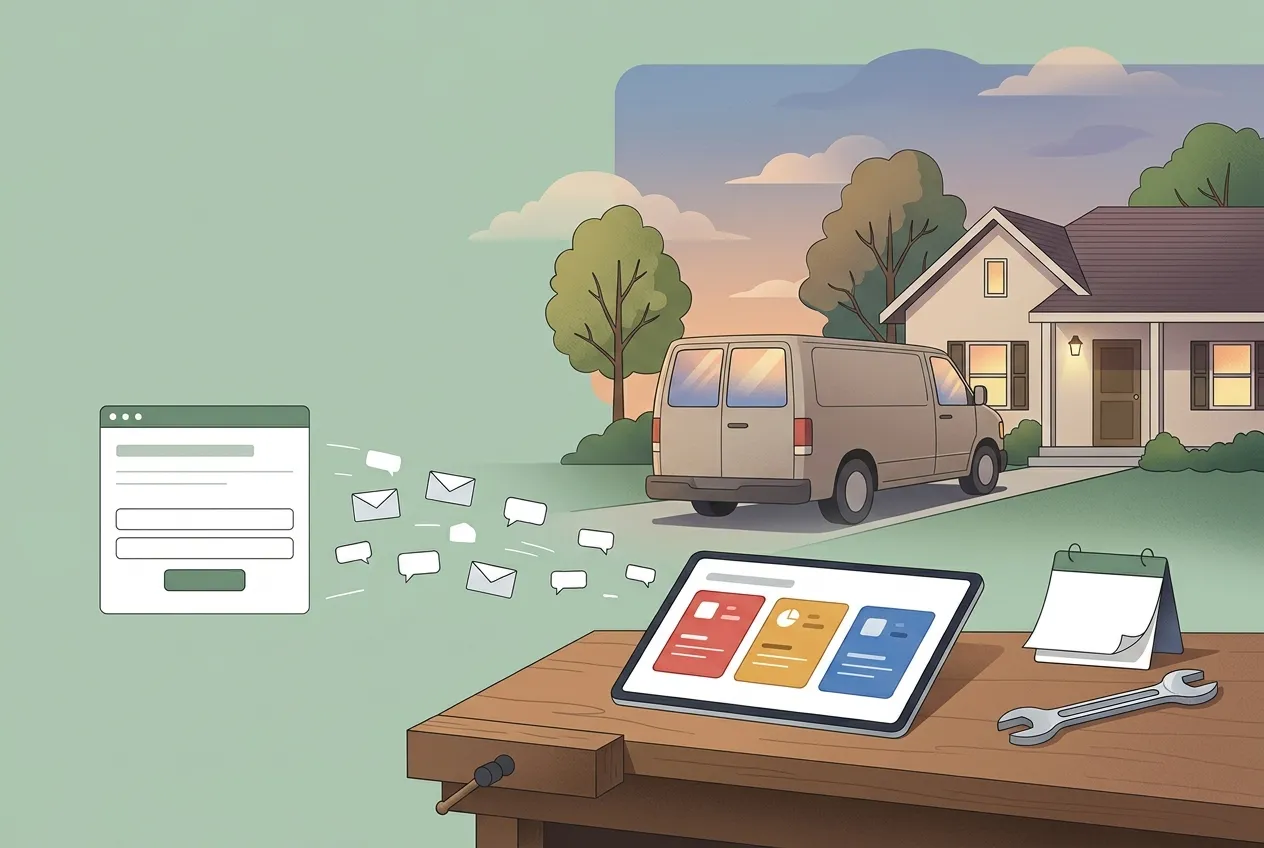







Comments
No comments yet — be the first to share your thoughts.
Join the discussion