How to Create and Send Estimates in ZartonAI
Itemized quotes, good/better/best options, deposits and online acceptance — all tied to the job

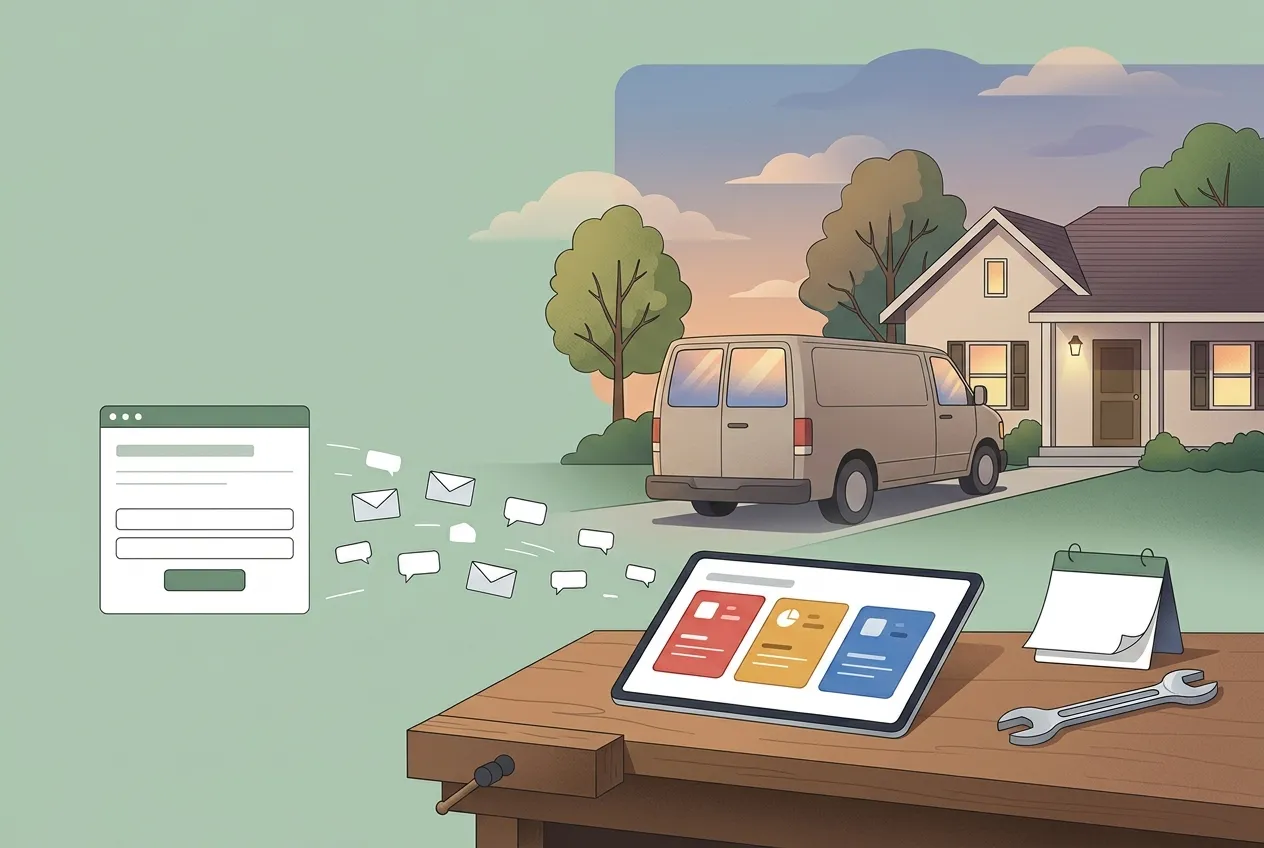
The job that gets the estimate out first usually gets the job. But for most electricians, plumbers, HVAC techs and contractors, estimates get written at the kitchen table after a long day, copied from an old Word file, and emailed with no idea whether the customer ever opened them.
This guide shows you how to create and send estimates in ZartonAI so that every quote is itemized, priced the way you have priced before, tied to the job it belongs to, and easy for the customer to accept online. You will also see how to offer good/better/best options, ask for a deposit, revise a quote without confusion, and write a change order once work has started.
Why estimates belong inside your job system
An estimate is not just a price. It is the moment a lead turns into a job, the list of materials you will need, and the hours your crew will spend. When it lives in a separate document, all of that has to be typed again later. In ZartonAI an estimate is attached to a job and a customer, so the lines you write become the record of what was promised — and when the customer accepts, the job and its value are already in place.
Every estimate in ZartonAI has a reference number (like EST-12), a status (draft, sent, accepted, declined or expired), a version number, a “valid until” date and its own line items. You can label it as an estimate, a quote or a bid, depending on what your customers expect to see.
How to create and send an estimate in ZartonAI, step by step
- Start from the job. Open the job the estimate is for (or create one for the new customer first). Starting from the job means the estimate is linked to the right customer and job site, and the title defaults to the job’s title — you can rename it to something the customer will recognize, like “Recessed lighting — 12 LED lights, two zones.”
- Check what you charged last time. Before you type a price, look at your price history for similar work. ZartonAI pulls past estimate lines that match your words (for example “water heater” or “gutter”) and shows the low, typical and high unit price you have used, plus how many of those estimates were accepted or declined. It is the quickest way to stay consistent across your team.
- Add itemized lines. Each line has a type — labour, material, equipment, item, service, product or discount — plus a description, quantity, unit (hr, ea, sq ft, roll, kit…) and unit price. Put labour in hours and materials by quantity. If an item is already in your catalogue (a service, product, stock item or piece of equipment), pick it by name and its price and cost are filled in for you. Labour can use a named rate from your rate card, such as “Electrician” or “HVAC tech.”
- Offer options and extras. Give lines the same option name — “Good,” “Better,” “Best” — and the customer chooses one of them. Mark the option you recommend; it counts toward the total until the customer picks. Lines marked as optional extras (say, a surge protector or a maintenance plan) are shown to the customer to tick, and are not added to the total unless they do.
- Apply discounts the right way. A line can carry a percent or a flat amount off. If your manager has set up named price adjustments (for example an “Emergency” rate), use those instead of improvising. A catalogue item priced below its catalogue price needs a reason and goes to a manager for approval — the estimate cannot be sent until the price is approved.
- Set the deposit, dates and wording. Add a short intro note above the lines, a “valid until” date, and a deposit percentage if you want money up front. Leave the terms empty to use your workspace’s standard terms, or write job-specific terms. Taxes use your workspace default unless you set a rate on a line.
- Review the draft. Everything stays a draft until you send it — the customer receives nothing while you are still working. Check the subtotal, tax and total, and read it once as the customer would.
- Send it. Sending emails the estimate from your workspace to the customer’s address on file (or another address you enter), with a PDF and a link where they can accept or decline. You can add a personal note or use the standard short message with the total.
- Track the answer. The estimate shows when it was sent and when it was opened, then whether it was accepted (with the signer’s name) or declined (with the reason, if they gave one). Filter your estimates by open, draft, accepted or declined to see which quotes are still waiting on a customer.
Revisions and change orders
Customers change their minds. ZartonAI handles that without a pile of “final_v3” files:
| Situation | What to do | What happens |
|---|---|---|
| Still a draft | Edit the lines, intro, terms, validity or deposit | The draft is simply updated |
| Already sent, needs changes | Make a revision | A new version (e.g. EST-3 v2) is created; the old version and its link retire, so the customer can’t accept an outdated price |
| Accepted, and the scope grows or shrinks | Write a change order against the accepted estimate | Added work goes on as new lines, removed work as a credit line; once the customer signs it, the job’s value is updated |
Tips and common mistakes
- Set up your rate card and markup once. Your estimate settings hold the labour rate card (charge per hour, and what an hour costs you), the markup on stock materials, and whether a built-up service appears as one line or itemized. Fill these in before your team writes estimates, so prices come out right automatically.
- Decide what happens when stock runs short. ZartonAI can check whether the stock and equipment on an estimate are available. Choose whether a shortfall only warns you or blocks the estimate from being sent.
- Don’t lump everything into one line. “Install AC — $4,800” invites haggling. Separate equipment, materials, labour hours and permits so the customer sees where the money goes.
- Always set a “valid until” date. Material prices move. An expired estimate is clearly marked, so you are not held to an old price months later.
- Revise, don’t re-send a new estimate. Creating a fresh estimate for the same job splits the history. A revision keeps one reference and retires the old link.
Do it with Claude
ZartonAI works with Claude through the Zarton connector, so the owner or office manager can ask for an estimate in plain language. Claude reads the job and your price history first, writes the estimate as a draft, shows you the lines and total, and only sends it after you have looked at it and said so. Sending, like anything that reaches a customer, only works when you have switched on “Allow actions” for the connection. Try requests like:
“Write an estimate for the water heater swap at the Chen job: a 50-gallon gas unit, permit, haul-away, and 4 hours of labour. Check what we charged last time.”
“Give Ben Okafor good, better and best options for the cedar deck, recommend Better, and ask for a 30% deposit.”
“Which quotes have we sent that are still waiting for an answer?”
“John wants two more GFCI outlets on the accepted electrical estimate — write a change order.”
“What prices are waiting for my approval?”
Learn more on our Works with Claude page.
Frequently asked questions
Does the customer see my estimate while I’m still working on it?
No. Estimates are drafts until you send them. The customer receives nothing until you choose to send, and then they get an email with the PDF and a link to accept or decline.
Can I give the customer more than one price option?
Yes. Lines that share an option name, such as Good, Better and Best, are presented as one choice. You can mark a recommended option, and add optional extras the customer can tick.
What happens to the old link when I revise an estimate?
A revision creates a new version of the same estimate. The previous version and its link are retired, so the customer can only accept the current price.
Can my technicians discount prices on their own?
They can add a discount to a line, but a catalogue item priced below its catalogue price needs a reason and a manager’s approval before the estimate can be sent.
How do I handle extra work after the customer accepted?
Write a change order against the accepted estimate. Added work becomes new lines and removed work a credit line. When the customer signs it, the job’s value updates.
Related reading
Stop retyping quotes at the kitchen table. Build your next estimate in ZartonAI and let your customer accept it online.
Try it at zartonai.com




Comments
No comments yet — be the first to share your thoughts.
Join the discussion