How to Track Tools, Vehicles and Equipment in ZartonAI
QR-tagged assets, check-out to crew and jobs, service schedules, fuel logs and damage reports — so you always know who has what
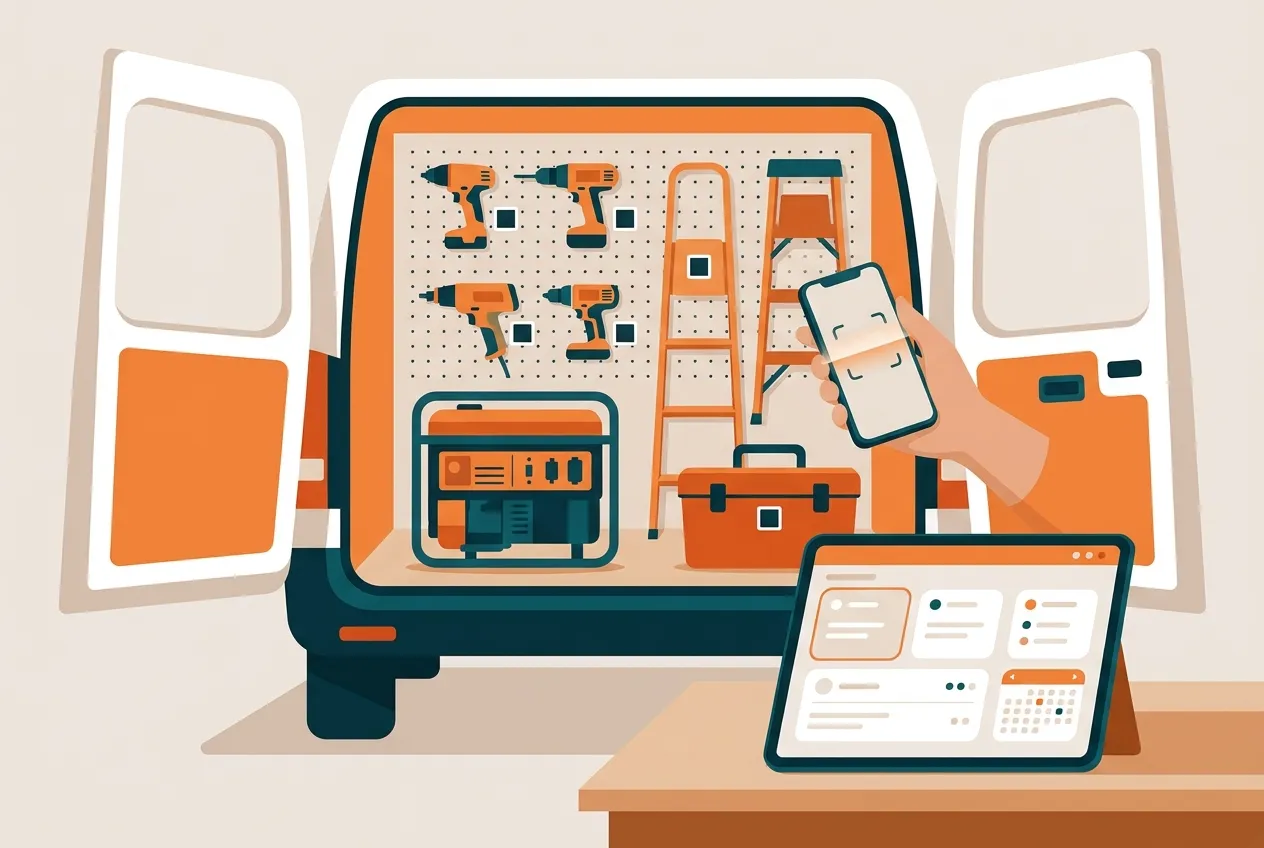
Every trade business has lost a tool it knows it owns. The hammer drill that “someone” took to a job last month, the van that was due for service in August, the generator nobody remembers lending out. Each one costs money twice: once to replace it, and again in the hours spent looking for it.
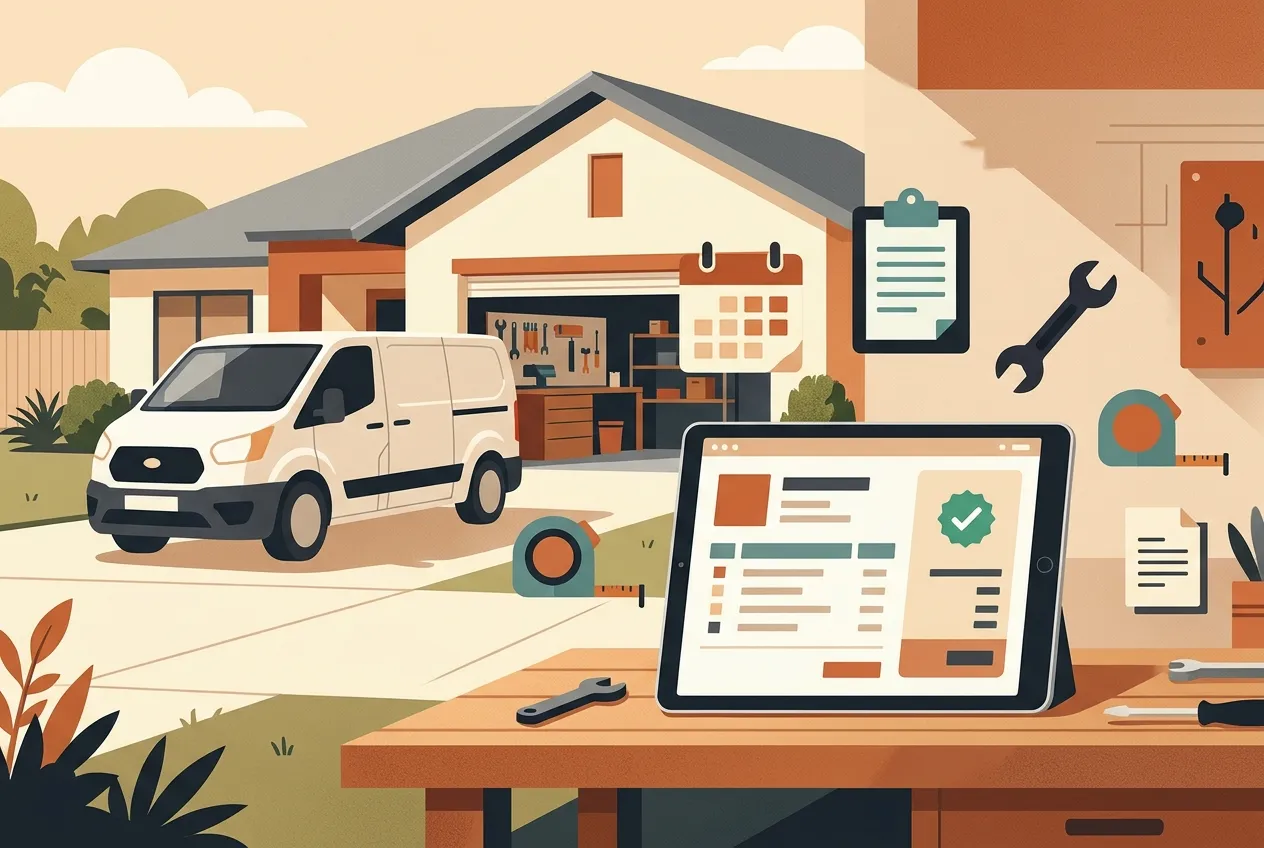
This guide shows you how to use asset tracking in ZartonAI to keep track of tools, vehicles and equipment: give every item a tag and QR sticker, check it out to a person and a job with a due-back date, schedule its service, log mileage and fuel, and report damage the moment it happens — so you always know what you own, where it is and what condition it is in.
How to track tools, vehicles and equipment in ZartonAI
- Decide what is an asset and what is stock. ZartonAI keeps two kinds of inventory. An asset is something you keep and reuse — a drill, a ladder, a generator, a trailer, a van. A stock item is material you use up in quantities, like wire, fittings or shingles. This guide is about assets. If you would count it in boxes or feet, it is stock; if you would ask “who has it?”, it is an asset.
- Add your assets. Add each asset with a specific name (“DeWalt 20V hammer drill”, not “drill”) and its kind: tool, power tool, vehicle, trailer, heavy equipment, generator, equipment, device, safety gear and so on. Fill in what you know — brand and model, serial number, VIN and plate for vehicles, purchase date, cost, supplier and warranty end date. You can also sort assets into your own categories and tags, such as “Van 2” or “Service crew”. Got a whole shelf to enter? You can add up to 25 items in one go, and ZartonAI skips anything that is already on record instead of creating a duplicate.
- Tag it and stick the QR label on. Every asset gets its own tag number, like AST-12, and a QR sticker. Put the sticker somewhere it won’t wear off. Later, anyone on the team can scan the QR code — or the item’s barcode or serial number — to pull up the asset in full. If you add assets in a batch, ZartonAI gives you one link to open on your phone so you can snap a photo of each new item.
- Set who looks after it and when it needs service. Choose a custodian: the team member responsible for the asset, even when someone else is using it. Then set its service schedule — a next service date, a repeat every so many days, or every so many miles or engine hours for anything with a meter. For vehicles and trailers, add the registration and insurance numbers with their expiry dates so renewals don’t sneak up on you.
- Check it out to a person, a job and a due-back date. When a tool leaves the shop, check it out to the team member taking it. You can link it to the job it is going to and set the date it is due back — for example, the generator to Marco for the Chen remodel until Friday. The asset’s status changes from available to checked out, so everyone can see where it is.
- Check it back in with its condition. When it comes back, check it in to the location it is stored at and note its condition: new, good, fair, poor or broken. Marking it broken sends it straight to repair, so nobody grabs it for the next job. For vehicles, enter the odometer reading at check-in — ZartonAI asks for it, because that is how mileage and service-due dates stay accurate.
- Log readings, services and fuel. Record meter readings as they happen (a meter never goes backwards, so a typo gets caught), log a completed service — which sets the next one automatically from the intervals you chose — and add fuel fill-ups with the quantity, total cost, meter reading at the pump and the station. Over time that gives you a real running history of each truck and machine.
- Report damage, breakdowns or theft. If something gets damaged, breaks down, is in an accident, goes missing or becomes unsafe, report it on the asset with a short summary, what happened and how serious it is. The report becomes an incident in your Tasks, linked to the asset, and the custodian and your inventory managers are told. A theft report marks the asset as lost; you can also send it for repair right away.
- Check what is out, overdue or due for service. Filter your assets by status — available, checked out, in repair, retired or lost — or by who has them, which job they are on, or problems: overdue back or service due. Tools that are overdue back also show up in the daily owner briefing, next to the day’s jobs and late invoices, so nothing quietly disappears.
Asset statuses at a glance
| Status | What it means | How it gets there |
|---|---|---|
| Available | In its storage location, ready to use | Added, or checked back in in usable condition |
| Checked out | With a team member, optionally on a job until a due date | Checked out to someone |
| In repair | Not usable until fixed | Checked in as broken, or sent to repair from a problem report |
| Lost | Missing or stolen | A theft report |
| Retired | No longer in service, kept for the record | Marked retired when you take it out of service |
Tips and common mistakes
- Name things the way your crew talks about them. “Yellow 7kW Honda generator” is easier to find than “Generator 2”. You can also find assets later by describing them in plain words.
- Always set a due-back date. Without one, a tool on a long job never shows as overdue. With one, it appears in your overdue list and morning briefing.
- Don’t skip the odometer at check-in. Mileage-based service only works if readings are kept up to date. If someone enters a lower number than last time, ZartonAI won’t accept it — check the dash rather than guessing.
- Record condition honestly. “Fair — chuck slipping” today saves a failed job tomorrow. Broken items go to repair automatically so they don’t get loaded on the next truck.
- Use a custodian for shared gear. The person holding a tool changes daily; the person responsible for it shouldn’t. Problem reports reach the custodian too.
Do it with Claude
ZartonAI works with Claude through the Zarton connector, so the owner or office manager can manage tools and vehicles in plain language. Claude finds the asset you describe, records exactly what you tell it, and reports back anyone or anything it could not match instead of guessing. If you send Claude photos of your gear, it lists each item it can identify — reading barcodes or serial numbers only when they are clearly visible — shows you the list, and then adds them all at once with a link for photos. Try requests like:
“Give the generator to Marco for the Chen remodel until Friday.”
“The ladder is back in the shop — it’s scratched but fine.”
“Filled the F-150 this morning: 18.4 gallons, $71.20, odometer 48,350.”
“What does Marco have right now, and is anything overdue?”
“Which trucks need a service this month?”
“The tile saw in Van 2 won’t start — report it and send it for repair.”
Learn more on our Works with Claude page.
Frequently asked questions
Can my crew find a tool by scanning it?
Yes. Each asset has a QR sticker, and scanning that code — or the item’s barcode, serial number or VIN — brings up the asset with its status, who has it and its history.
Do I have to enter every tool one by one?
No. You can add up to 25 items at once, and items already on record are skipped rather than added twice. You then get one link to open on your phone to add a photo to each new item.
How does ZartonAI remind me about vehicle service?
Set a next service date, a repeat interval in days, or an interval in miles or engine hours. When you log a completed service, the next one is worked out from those intervals, and assets due for service are easy to filter.
What happens when a tool comes back broken?
Check it in with the condition “broken” and it is sent to repair automatically. For bigger problems — damage, an accident or theft — report it on the asset and it becomes a tracked incident in Tasks.
Related reading
Know where every tool is before the next job starts. Add your first assets in ZartonAI and stick on the QR labels this week.
Try it at zartonai.com


Comments
No comments yet — be the first to share your thoughts.
Join the discussion