How to Track Parts and Materials Stock in ZartonAI
Stock per location, reorder levels, deliveries, van transfers and job usage — plus a shopping list built from the jobs you've already won
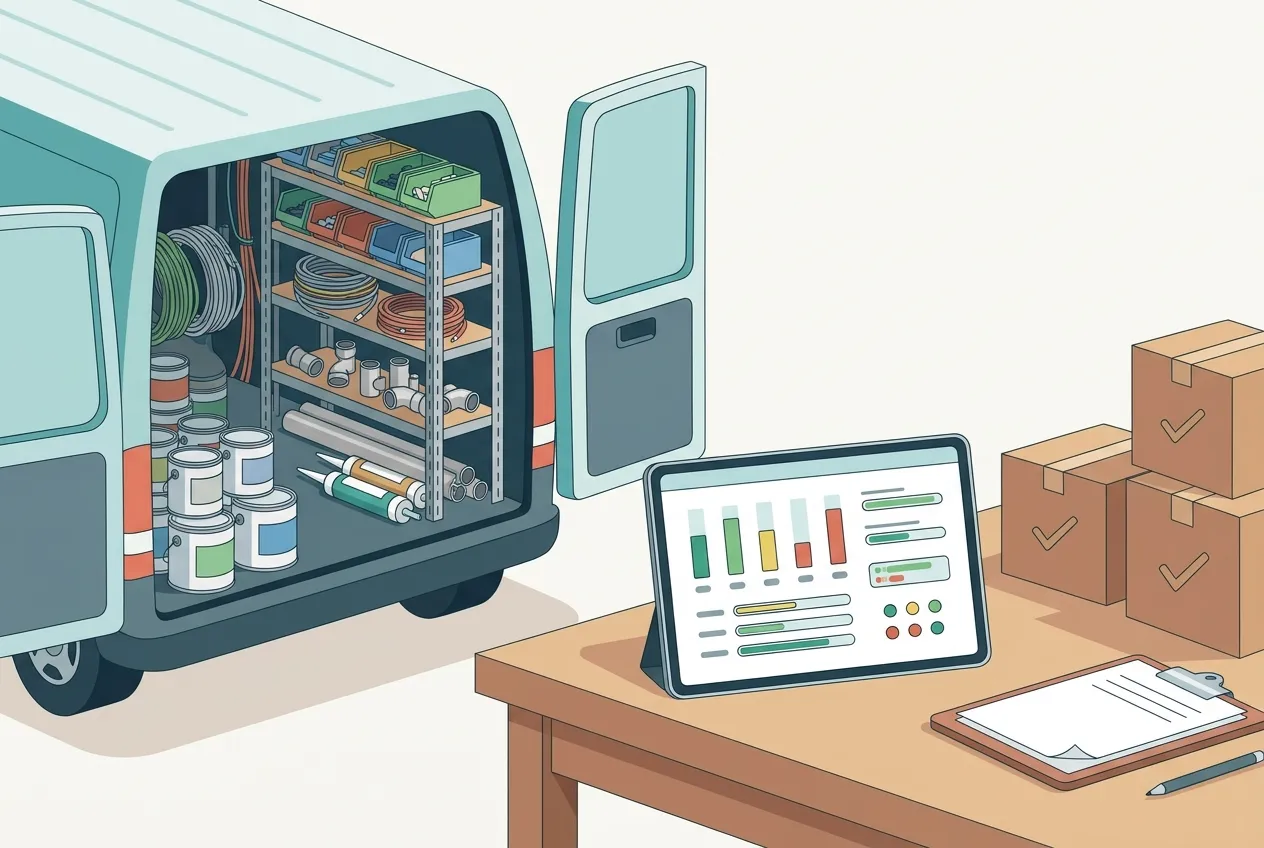
You get to the job, open the van, and the box of fittings you were sure was there is empty. So it’s a run to the supply house, an hour of billable time gone, and a customer wondering why the crew left. Multiply that by a few jobs a week and running out of materials quietly becomes one of the most expensive habits in a trade business.
This guide shows you how to use stock and materials inventory in ZartonAI to track parts and materials across your warehouse, shop and vans: add stock items with their units and costs, set reorder levels, record deliveries and van transfers, log what each job used, and get a shopping list built from the jobs you have already won.
How to track parts and materials stock in ZartonAI
- Decide what belongs in stock. Stock is anything you use up and count in quantities: wire, fittings, filters, caulk, paint, shingles, fasteners. Tools, vans and equipment you keep and reuse are assets, which ZartonAI tracks separately. A quick test: if you would ask how many are left, it is stock; if you would ask who has it, it is an asset.
- Add your stock items. Give each item a specific name (“Silicone caulk, clear, 10 oz” rather than “caulk”), a SKU, the unit you count it in (each, box, roll, foot, gallon, tube) and your cost per unit. Add what helps you buy it again: supplier, the supplier’s part number, brand, manufacturer part number and lead time in days. Put the barcode on it so a scan finds it, add storage notes, and flag anything hazardous. Have a whole shelf to enter? Add up to 25 items in one go; anything already on record is skipped, and you get one link to open on your phone to add a photo of each new item.
- Set up your locations and opening counts. Stock lives in places: the main warehouse, the shop shelf, Van 1, Van 2. Record a count at each location to set the real quantity there. From then on ZartonAI keeps a running total per location, so you can see that you have 20 tubes in the shop but only 2 on the truck.
- Set a reorder level and reorder quantity. The reorder level is the point at which an item counts as low — for example 24 tubes of caulk. The reorder quantity is how many you normally buy when you restock. Items at or under their reorder level are flagged as low.
- Receive deliveries. When an order arrives, record it as received at the location it went to. If the price changed, enter the new cost per unit with the delivery so your job costs stay accurate.
- Move stock between locations. Loading a van in the morning? Record a transfer from the warehouse to the van. ZartonAI takes it off one location and adds it to the other, so the warehouse total and the van total are both right.
- Record what goes on each job — and what comes back. When materials are used, record them against the job from the location they came from, such as 8 bundles of shingles from Van 2 onto the Oak Street roof. Bring leftovers back with a return. ZartonAI shows the materials each job used, net of returns, with their cost, so you know what the job really took.
- Check what is low and what to order. Pull up everything that is low, or ask for the shopping list: the items that jobs already underway need, based on their accepted estimates, more of than you have on hand. Each item also shows how much other jobs still need, so you don’t order for one job and come up short on the next.
- Count regularly to keep it honest. Do a quick count of a van or a shelf every week or two and record the real number. A count sets the quantity at that location to what is actually there, which catches the materials that left without being recorded.
The five stock movements at a glance
Every change to your stock is one of five movements. Recording the right one keeps every location’s total accurate.
| Movement | When to use it | What changes |
|---|---|---|
| Receive | A delivery arrives | Adds to a location, optionally at a new cost per unit |
| Transfer | Loading a van, restocking a shelf | Moves quantity from one location to another |
| Use | Materials go into a job | Takes from a location and counts against the job |
| Return | Leftovers come back from a job | Adds back to a location and reduces the job’s usage |
| Count | You physically count a shelf or van | Sets the location to the real quantity |
How stock connects to estimates and jobs
Stock isn’t a separate island. The shopping list looks at the accepted estimates on jobs underway and compares what they need with what you have, so you order for the work you have actually won. In your estimate settings you can also set a material markup on stock cost, and choose whether a stock shortfall only warns you or stops an estimate from being sent until you have the materials. And because usage is recorded against each job, you can see the real material cost of a job next to what you quoted — useful when you run a job from first call to final invoice.
Tips and common mistakes
- Pick one unit and stick to it. If caulk is counted in tubes, don’t receive it in boxes. Decide the unit when you add the item and convert deliveries to it.
- Treat each van as a location. Most “missing” stock is just sitting in a different truck. Locations per van make that visible.
- Record returns, not just usage. If leftovers go back on the shelf without a return, the job looks more expensive than it was and the shelf looks emptier.
- Set reorder levels from lead time. An item that takes ten days to arrive needs a higher reorder level than one you can pick up tomorrow. Enter the lead time so whoever orders knows.
- Update the cost when prices change. Enter the new cost per unit when you receive a delivery so job costs and markups use today’s prices.
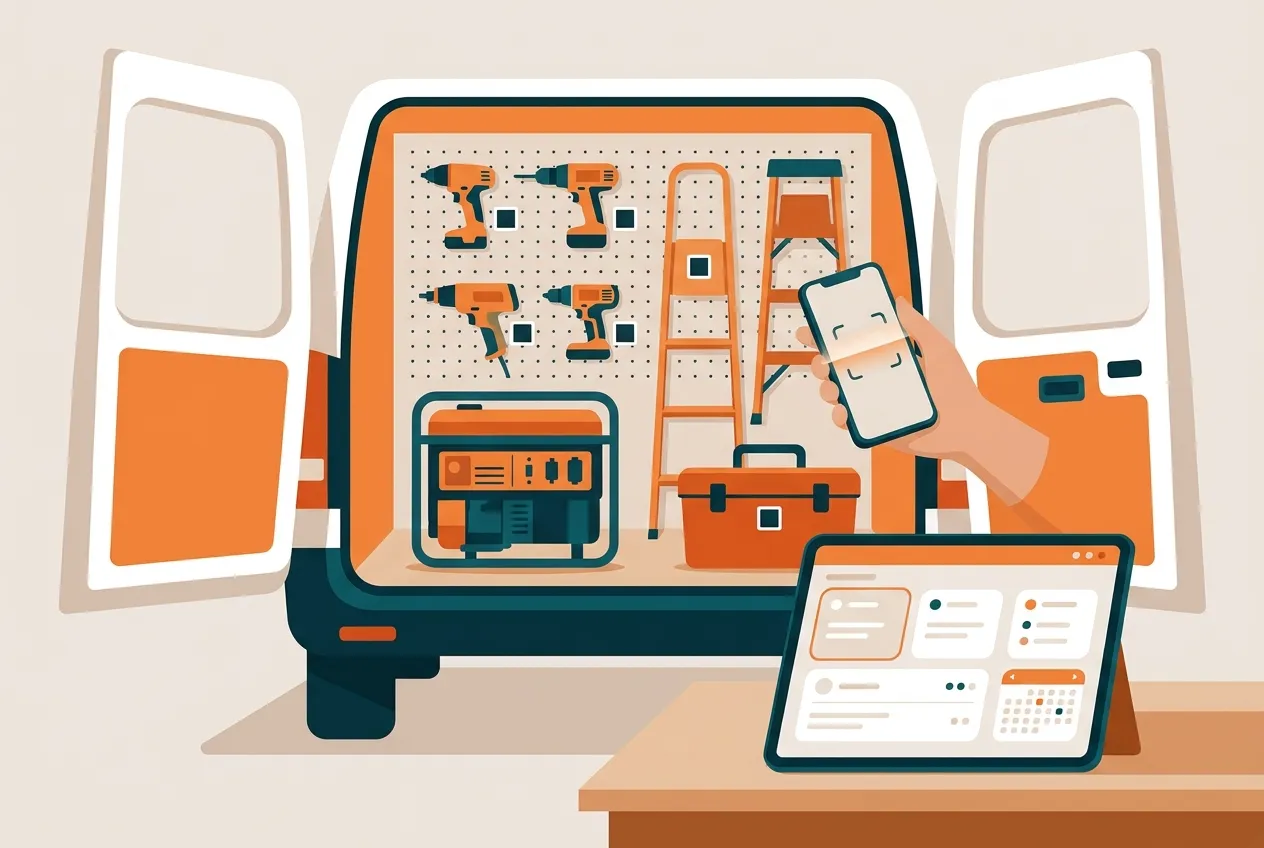
- Don’t put tools in stock. A drill isn’t used up. Track it as an asset with a QR tag and check-out instead — see how to track tools, vehicles and equipment.
Do it with Claude
ZartonAI works with Claude through the Zarton connector, so you can keep stock up to date by just saying what happened — from the office, or from the truck at the end of the day. Claude records exactly what you tell it, tells you the new total and whether the item is now low, and won’t let a location go below zero. If you send photos of a shelf, Claude lists each item it can identify — using barcode digits only when it can actually read them — shows you the list, and adds them in one go. Try requests like:
“8 bundles of shingles from Van 2 went on the Oak Street roof.”
“The supply house delivered 48 tubes of silicone caulk to the main warehouse at $5.90 each.”
“Move 10 gallons of interior paint from the warehouse to Van 1.”
“What’s low right now, and what do the jobs we’ve got lined up still need?”
“What materials did the Chen remodel use, and what did they cost?”
“I counted Van 2: there are 14 PVC elbows, not 20.”
Learn more on our Works with Claude page.
Frequently asked questions
What is the difference between stock and assets in ZartonAI?
Stock items are materials you use up and count in quantities, like wire, filters or paint. Assets are tools, vehicles and equipment you keep and reuse; each gets a tag and QR sticker and is checked out to people. Both live in ZartonAI’s inventory.
Can I track stock in my vans as well as the warehouse?
Yes. Each item keeps a quantity per location, so you can set up the warehouse, the shop and every van as locations and transfer stock between them.
Can stock go negative if someone records too much?
No. ZartonAI never takes a location below zero. If a use or transfer would do that, fix the count first by recording what is really there.
How does stock connect to my estimates?
The shopping list is built from the accepted estimates of jobs underway. In your estimate settings you can choose a material markup on stock cost and whether a stock shortfall only warns you or stops an estimate from being sent.
Will I be told when something runs low?
Low stock shows up in the daily owner briefing alongside jobs, bids and late invoices, and in ZartonAI’s activity feed, so Claude or an automation can tell you.
Related reading
Stop making supply-house runs mid-job. Add your most-used materials to ZartonAI, set their reorder levels and load your vans with confidence.
Try it at zartonai.com







Comments
No comments yet — be the first to share your thoughts.
Join the discussion