How to Put Your Follow-Ups on Autopilot in ZartonAI
Eight ready-made playbooks that chase quotes, deposits, invoices and reviews so nothing slips through the cracks

The estimate went out Tuesday. The customer never answered. Nobody followed up, because everyone was on a roof, under a sink or behind a counter. Sound familiar?
Most trade and service businesses don't lose work because their price was wrong. They lose it in the gaps: the lead nobody thanked, the quote nobody chased, the deposit invoice nobody drafted, the review nobody asked for. Autopilot automations in ZartonAI close those gaps. They are ready-made routines that watch for something to happen in your business (a form filled in, a quote accepted, an invoice paid) and then do the next step the same way every time, without anyone having to remember.
This guide walks through the eight Autopilot playbooks, how to switch one on safely, and how to ask Claude to set them up for you.
What Autopilot automations in ZartonAI do
Every Autopilot playbook is built around a business event: a moment ZartonAI already knows about because it runs your leads, estimates, jobs and invoices in one place. When the event happens, the playbook reacts. Each one has a small number of options you can adjust, such as how many days to wait or what deposit percentage to use.
| Playbook | What it does | Options you can set |
|---|---|---|
| Reply to new leads | When someone fills in a form on your website, thanks them straight away and tells whoever handles leads. | Who to notify, the message |
| Tell me about hot leads | When a new lead is rated hot, tells you at once why, and whether a reply is drafted for you to check and send. | Who to notify |
| Follow up quotes | If a quote is still unanswered, follows up after a few days, again a few days later, then tells you it has gone quiet. | First follow-up, second follow-up, when to call it quiet, who to notify |
| Deposit on acceptance | When a customer accepts an estimate, drafts the deposit invoice and tells you. | Deposit percent, who to notify |
| Invoice when the job is done | When a job is marked done, drafts the final invoice for whatever is left to bill. | Who to notify |
| Ask for a review | A day after a final invoice is paid, asks the customer for a review. | How long after, your review link |
| Chase overdue invoices | Tells you the day an invoice goes overdue, and again if it is still unpaid later. | When to remind again, who to notify |
| Morning digest | Every morning: money in, quotes, new leads, jobs, and what needs you. | Time of day |
Together they cover the whole path a customer takes, from first contact to five-star review. If you've already set up estimates and invoicing, these playbooks are the glue between them.
How to switch on an Autopilot playbook
Pick the gap that costs you most
Don't turn on all eight at once. Start with the one where work most often slips through. For many contractors that's unanswered quotes; for busy shops it's often overdue invoices. One well-tuned playbook beats eight you haven't checked.
Open Automations and choose the playbook
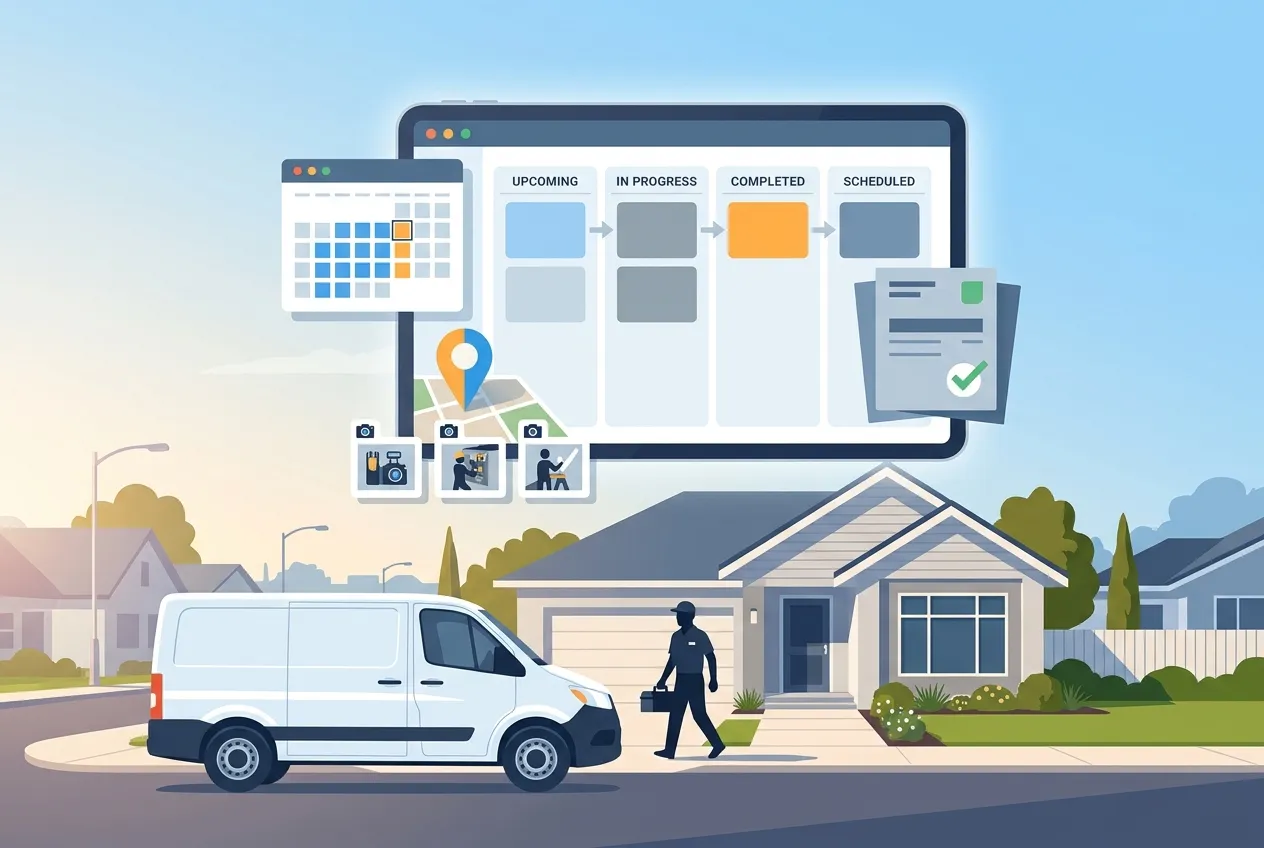
In your ZartonAI workspace, go to Automations and pick the Autopilot playbook you want. You'll see what event starts it and which options it has. Your automations list also shows each one's on/off state, what starts it, whether it may reach customers, and how its last run went.
Set the options to match how you work
Fill in the few options the playbook offers: the number of days before the first and second quote follow-up, the deposit percentage you normally ask for, the time your morning digest should arrive, or the review link you want customers to use. Choose who gets told, whether that's you or the person who handles leads, estimates or invoices.
Check that it starts switched off
Every automation in ZartonAI is created off. Nothing happens until you decide. Use that moment to re-read what the playbook will do and who it will reach.
Decide how much it may do on its own
Emails and invoices to customers stay as drafts unless you allow that automation to act, and you give that permission inside ZartonAI. A good first setting is "draft and tell me": the playbook prepares the follow-up or the deposit invoice, and you look it over and send.
Switch it on and watch the first few runs
Turn the playbook on. Every run is logged, so you can open it and see what triggered it, what it did, and any error. If something isn't right, pause it. Automations are logged, pausable and undoable.
Add the next one
Once the first playbook has run cleanly for a week or two, add the next. A natural order for a trade business is: quote follow-up, then deposit on acceptance, invoice when done, overdue chaser, and finally review requests.
Tips and common mistakes
Tip: keep the morning digest even if you automate nothing else. It gathers money in, open quotes, new leads and jobs into one message, so you start the day knowing what needs you instead of digging through screens.
Tip: pair deposits with acceptance. The moment a customer accepts, Deposit on acceptance drafts the deposit invoice at your usual percentage. That's the point where customers are most ready to pay, and you're not relying on memory to bill it.
Mistake: follow-ups that are too close together. Two reminders in three days feels pushy. Give the customer a few working days before the first follow-up and a little longer before the second. The playbook then tells you the quote has gone quiet, which is your cue to pick up the phone.
Mistake: asking for a review before the money is in. The review playbook waits until the final invoice is paid. That's on purpose: a customer who just settled a job they're happy with is the one most likely to leave a good review.
Mistake: letting everything send on day one. Keep customer-facing messages as drafts until you trust the wording and the timing. You can loosen it later.
Lead playbooks work best once your website forms are feeding ZartonAI. Our guide to capturing, rating and answering website leads covers that side.
Do it with Claude
If you've connected Claude to ZartonAI, you can set up and check Autopilot in plain language. Claude reads how your automations work first, creates playbooks switched off, and tells you what each one will do. It switches one on only when you say so, and it can't give an automation permission to email customers. That stays your call inside ZartonAI.
Things you can ask:
"What's automated in my business right now, and is anything failing?"
"Set up quote follow-ups: first nudge after 3 days, second after 7, then tell me it's gone quiet."
"When a customer accepts an estimate, draft a 30% deposit invoice and let me know."
"Send me a morning digest at 6:45 every day."
"Why did last night's overdue-invoice run fail?"
"Turn the review request on, and use our Google review link."
Claude can also take on the jobs that need judgment, like reading a long thread or deciding what matters, and then hand the result to a ZartonAI automation, so the fixed steps still run the same way every time.
FAQ
Will Autopilot email my customers without me knowing?
Not unless you allow it. Every automation starts switched off, and emails and invoices to customers stay as drafts until you give that automation permission to act inside ZartonAI.
Can I change the timing after a playbook is running?
Yes. Each playbook's options, like follow-up days, deposit percent or digest time, can be changed later, and you can switch a playbook off at any time.
What if an automation fails?
Every run is logged with its result. Your automations list shows how each one's last run went, and you can open a run to see the error, or ask Claude to explain it.
Do I need all eight playbooks?
No. Most businesses get the biggest win from one or two, usually quote follow-ups and overdue-invoice chasing. Add others as you get comfortable.
Can I build my own automation instead?
Yes. ZartonAI also supports custom automations that start on a business event, a schedule or by hand. The Autopilot playbooks are the recommended starting point because they're already wired for the most common jobs.
Stop relying on memory to chase quotes and invoices. Turn on your first Autopilot playbook today at zartonai.com, and if you're new to the platform, see how it all starts with running jobs from first call to final invoice.







Comments
No comments yet — be the first to share your thoughts.
Join the discussion