How to Publish, Undo and Roll Back Website Changes in ZartonAI
Work in the draft, publish when it's right, use maintenance for risky changes, and roll the live site back in one step if something breaks

You change the phone number in your website header on a Friday afternoon, hit save, and drive to a job. On Monday you learn that the menu disappeared on phones and nobody could find your “Request a quote” page all weekend. For a plumber, electrician or body shop, the website is the storefront, and a broken storefront costs calls.
This guide shows you how to publish, undo and roll back website changes in ZartonAI. You will learn the difference between your draft and your live site, how to publish one page or the whole site, how to put the site in maintenance for a risky change, and how to put things back the way they were with a single rollback if something goes wrong.
Draft first, live second
Every ZartonAI website has two sides. The draft is where you work: new pages, rewritten sections, a new header or footer. Visitors never see the draft. The live site is what your customers see, and it only changes when you publish.
A few changes are different and go straight to the live site, because they are read live on every page: your header and footer menus, your theme (colours, fonts, buttons), unpublishing a page and deleting a page. ZartonAI treats these with extra care, as you will see below, by saving what the live site looked like just before the change.
How to publish, undo and roll back website changes in ZartonAI
- Make your changes in the draft. Open your website in the ZartonAI editor and edit the page you need: change text, swap a photo, add a section, adjust the header or footer. You can also ask Claude to do it for you through the Zarton connector. Either way the change is saved to the draft only. Edits made in the editor can be undone in the editor, so a slip of the mouse is not a disaster.
- Check the draft as a customer would. Before anything goes live, look at the changed page from top to bottom, including on a phone-sized screen. Click the buttons, check the phone number, and make sure any form still shows. Most website problems are found here, in two minutes, before a single customer sees them.
- For a risky change, switch on maintenance first. If you are rebuilding the home page or reworking several pages at once, put the live site (or only the pages you are changing, such as /services) into maintenance for a set number of minutes. Visitors see a holding page with your message instead of a half-finished page. ZartonAI gives you a private preview link so you can still see the real site, and maintenance lifts itself when the time is up — at most a week. Switch it off as soon as you are done.
- Publish one page or the whole site. When the draft looks right, publish. Publish a single page when you only changed that page, or publish the whole website after a bigger round of edits; publishing the whole site runs in the background. Publishing changes what visitors see, so the person doing it needs to be someone you trust with the live site.
- Take a page off the site without losing it. Running a seasonal offer that has ended, or a service you have paused? Unpublish that one page. It comes off the live site straight away, its menu links stop showing, and it stays off even when you publish the rest of the site — until you publish that page again. The page itself is kept, ready for next season.
- Look at your release history. Every publish creates a release: a snapshot of what visitors saw afterwards. ZartonAI also saves a release just before each change that goes straight to live — a menu change, a theme change, unpublishing or deleting a page. The list shows each release newest first, when it happened, who or what made it (a team member in the editor, or Claude through the connector) and how many pages were live.
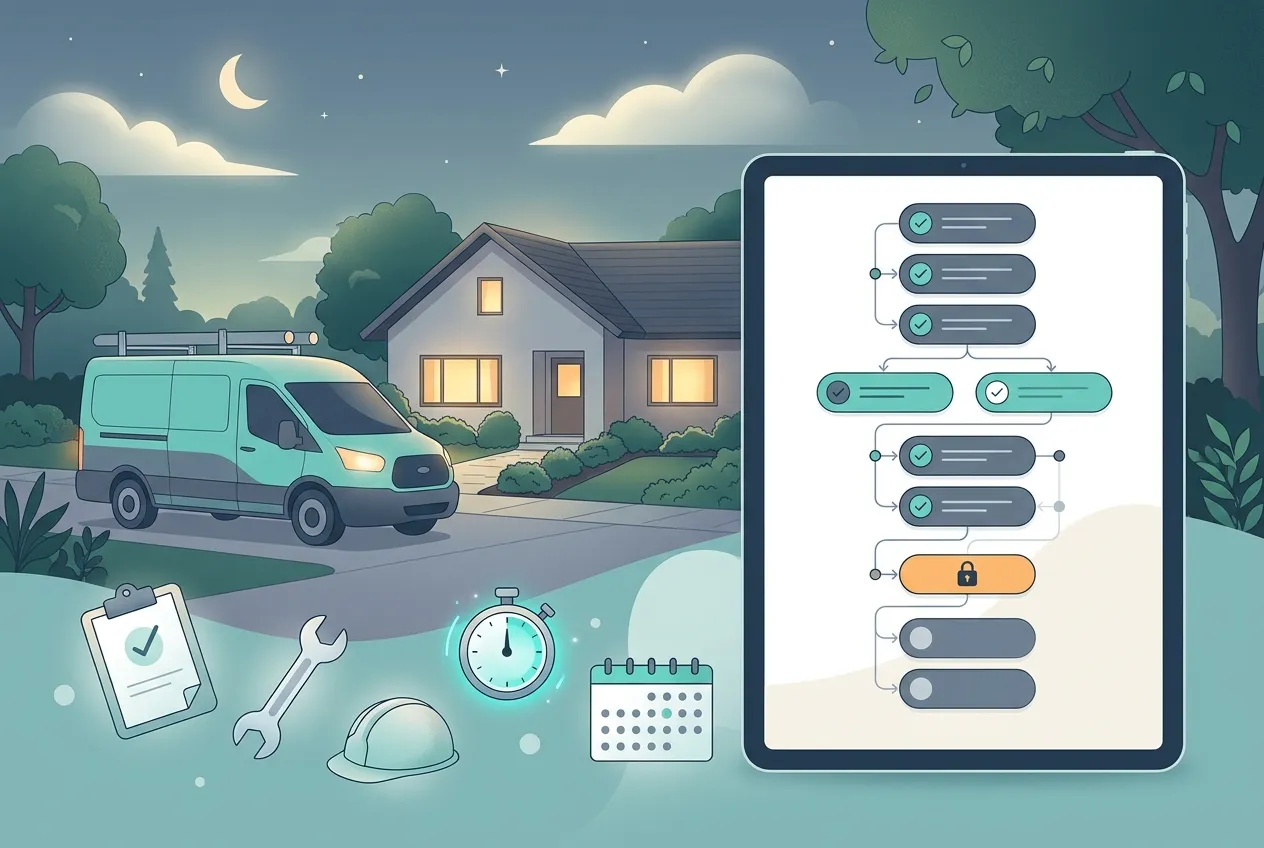
- Roll back if something went wrong. Pick the release from before the problem and roll back to it. ZartonAI restores that release’s live pages, header and footer, menus and theme, and the draft behind them, and visitors see it at once. Before it rolls back, it saves the current state as a release too — so if you rolled back too far, you can roll forward again.
- Restore a blog post or product separately. A rollback puts your pages and design back; it does not touch your content entries, such as blog posts, products, services or reviews. If someone changed the text of a post or the price on a product by mistake, open that entry’s version history, see what each earlier version held and who changed it, and restore the version from just before the unwanted change.
What goes live when
| Change | When visitors see it | How to undo it |
|---|---|---|
| Page text, sections, header and footer design | When you publish | Undo in the editor, or roll back to an earlier release |
| Header and footer menus | Immediately | Roll back to the release saved just before |
| Theme colours and fonts | Immediately | Roll back to the release saved just before |
| Unpublishing a page | Immediately | Publish the page again |
| Deleting a page | Immediately | Undo in the editor, or roll back |
| Blog posts, products, services | When the entry is published | Restore an earlier version of the entry |
Doing a full redesign without risking the live site
For a bigger makeover — new look, new pages, new menu — you don’t have to edit the live website at all. Create a second website in the same project as a draft. By default it shares your existing content (posts, products, services) so its lists are full from day one, and your live site keeps them too. Build and publish the new site’s pages at your own pace. When it is ready, make it the live website, and visitors start seeing it instead of the old one. The old site is kept, so the switch is not a one-way door.
Tips and common mistakes
- Publish the page, not the whole site, for small fixes. A one-page change published on its own keeps your release history easy to read.
- Treat menus and theme as live edits. They change the site the moment you save them. Make them when you have time to check the result right away.
- Unpublish instead of delete. Unpublishing keeps the page for later. Delete only pages you are sure you will never need.
- Don’t leave maintenance on. Pick the shortest time the work needs, and switch it off when you finish. A holding page all weekend loses calls just like a broken page does.
- Know which tool fixes what. Rollback fixes pages, menus and design. Version history fixes posts and products. Using the right one saves a lot of retyping.
Do it with Claude
ZartonAI works with Claude through the Zarton connector, so an owner or office manager can look after the website in plain language. Claude reads the site before changing it and saves design changes to the draft. Publishing, menus, theme changes, maintenance, unpublishing and rollbacks change what customers see, so they only work when you have switched on “Allow actions” for the connection. Try requests like:
“Change the phone number in our footer to 555-0142 and show me the draft.”
“Publish just the Services page.”
“Put the home page into maintenance for 30 minutes with the message ‘Back shortly — call us anytime.’”
“Show me the last five releases of our website and who made each one.”
“The menu broke after this morning’s change. Roll the site back to the release before it.”
“Someone changed the price on the water heater install product yesterday. Show me its history and put back the old version.”
Learn more on our Works with Claude page.
Frequently asked questions
Do my customers see changes while I am still editing?
No. Page edits stay in the draft until you publish. The exceptions are menus, the theme, and unpublishing or deleting a page, which change the live site straight away.
Can I undo a rollback?
Yes. Before rolling back, ZartonAI saves the current live state as a release, so you can roll back to that one if you change your mind.
Will rolling back the website undo my blog posts or product changes?
No. A rollback restores pages, header and footer, menus and theme. Blog posts, products and other content entries are restored from their own version history.
What do visitors see during maintenance?
A holding page with your message. You choose the whole site or only certain pages and how many minutes it lasts, and you get a private preview link to see the real site in the meantime.
Related reading
- How to Capture, Rate and Answer Website Leads in ZartonAI — make sure the pages you publish turn visitors into enquiries.
- How to Create and Send Estimates in ZartonAI — the next step once an enquiry comes in.
Change your website without the Friday-afternoon fear. Edit in the draft, publish when it’s right, and roll back in one step if it isn’t.
Try it at zartonai.com




Comments
No comments yet — be the first to share your thoughts.
Join the discussion