How to Get a Daily Owner Briefing and Business Digest in ZartonAI
Crews, late money, waiting quotes, low stock and tools out — the whole morning meeting in five lines, before the first van leaves

It is 6:45 a.m. Before the first van leaves, you want to know three things: who is going where, who owes you money, and what will bite you today if nobody deals with it.
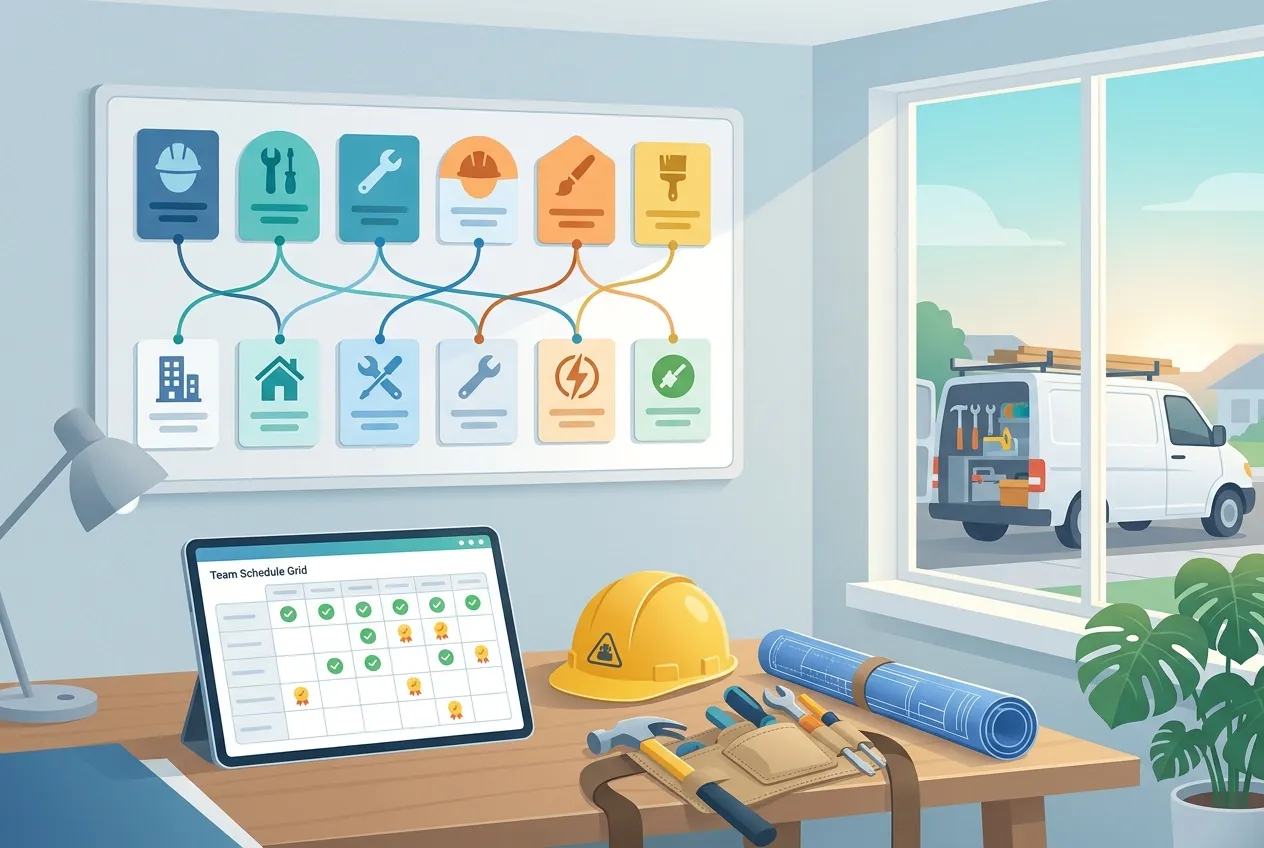
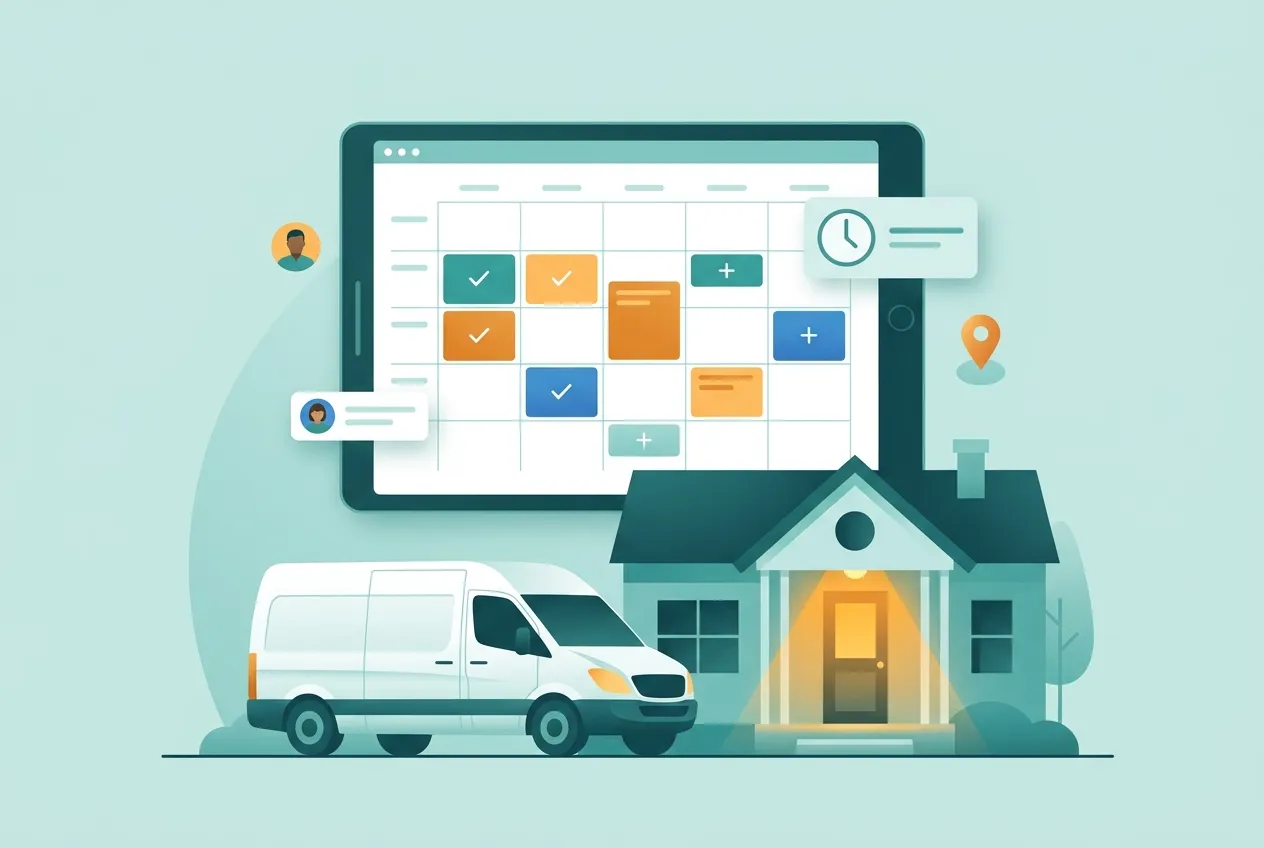
Most owners piece that together from a whiteboard, a stack of texts and a quick scroll through the accounting app. Something always slips: the quote that expired on Friday, the nail gun that never came back, the invoice that is now three weeks late. The owner briefing and business digest in ZartonAI fix that by pulling jobs, crews, quotes, invoices, stock and tools into one short summary, because all of that already lives in one connected app.
This guide shows how to read the daily briefing, when to use the longer digest, how to act on what it flags, and how to have it waiting for you every morning.
What the owner briefing and business digest in ZartonAI show
There are two views, and they answer different questions.
| View | Answers | What's in it |
|---|---|---|
| Owner briefing | "What is happening today?" | Jobs on today and in progress, who is on which job and where, who is free or away, jobs starting this week, bids waiting (and expiring soon), overdue invoices with days late, low stock, tools overdue back. |
| Business digest | "How did this period go, and what needs me?" | For today, yesterday, the last 24 hours, 7 days or 30 days: Money, Quotes and Jobs, then a Needs attention list with links to each record. |
A typical briefing reads like this:
Today: 2 jobs on, 1 in progress. Who is where: Dana on JOB-2 Kitchen remodel (Clovis). Free: Marco. Bids waiting: 1, expiring within a week. Overdue: 3 invoices, the oldest 21 days late. Low stock: interior paint, silicone caulk. Tools overdue back: framing nailer.
That is your whole morning meeting in five lines.
How to use your daily briefing, step by step
Get the basics into ZartonAI first
The briefing can only report what ZartonAI knows. Jobs need their dates and crew, estimates need to be sent from ZartonAI, invoices need due dates, stock items need a reorder level, and tools need to be checked out to a person. If you already run jobs, quotes and invoices here, you are ready.
Ask for the day at a glance
Ask Claude through the Zarton connector something like "What's happening today?". The owner briefing comes back in a few short lines: which jobs are on today and which are in progress, who is on which job and in which town, who is free and who is away, jobs starting this week, bids waiting for an answer (with how many expire within a week), overdue invoices with how many days late each one is, low stock, and tools that are overdue back.
Read it money-first
Work the list in order of what costs you most if ignored: late money, then bids about to expire, then people with no work, then stock running out. A crew member sitting free on a busy day, or a quote that expires on Friday, is easy to fix at 7 a.m. and expensive to discover at 4 p.m.
Pull a business digest for a longer view
For a wider look, ask for a digest of today, yesterday, the last 24 hours, the last 7 days or the last 30 days. It is laid out in sections: Money (payments received, invoices sent, what is owed and how much of it is overdue), Quotes (sent, accepted, declined and still waiting), Jobs (new jobs, stage moves, and how many sit in each stage), and finally Needs attention.
Act straight from Needs attention
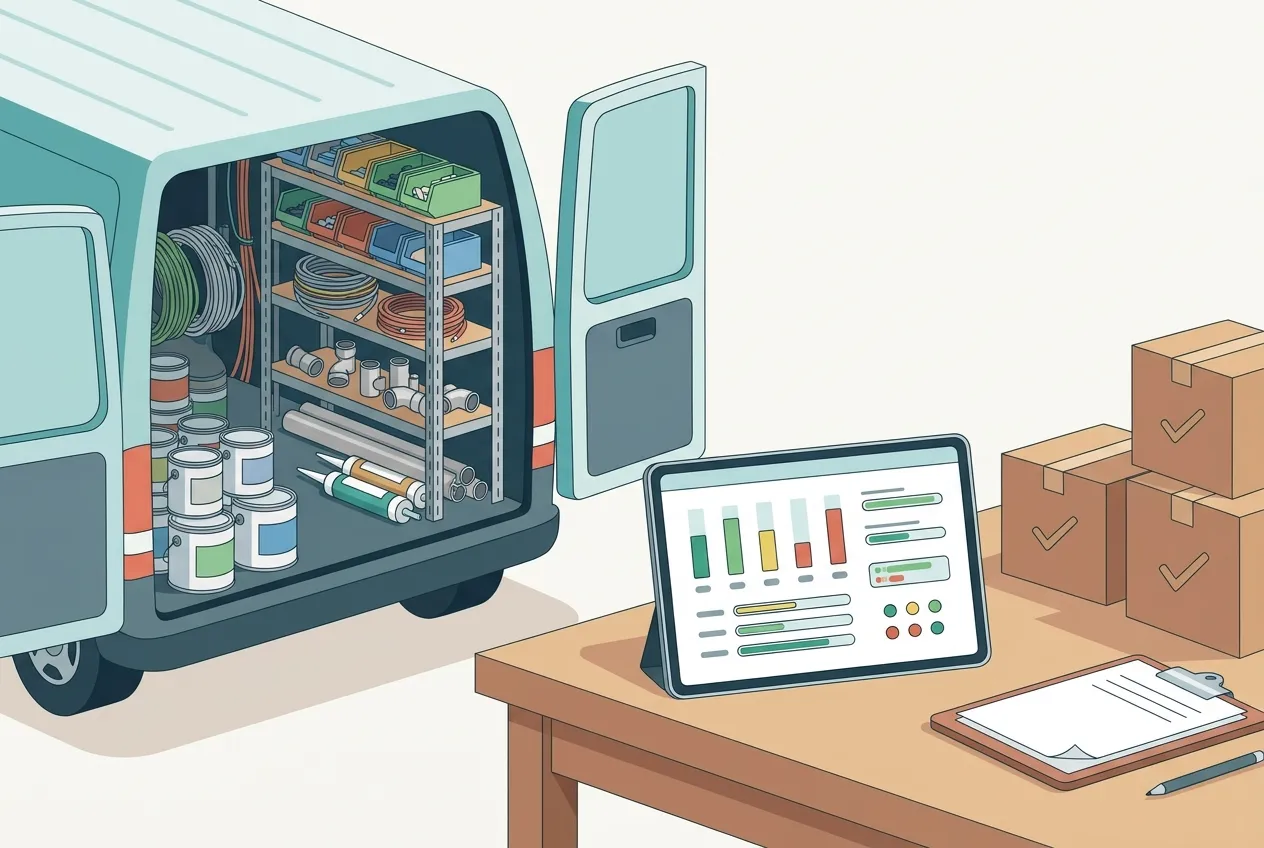
The Needs attention list names the record, the customer, the amount and how late it is, with a link that opens the invoice, quote, job or tool. It flags overdue invoices, quotes that were opened but not answered or are about to expire, stock that upcoming jobs need but you are short of, assets overdue back and automations that failed. For money, ask Claude to show who owes you: you get a card where you can tick invoices and send reminders.
Have it delivered every morning
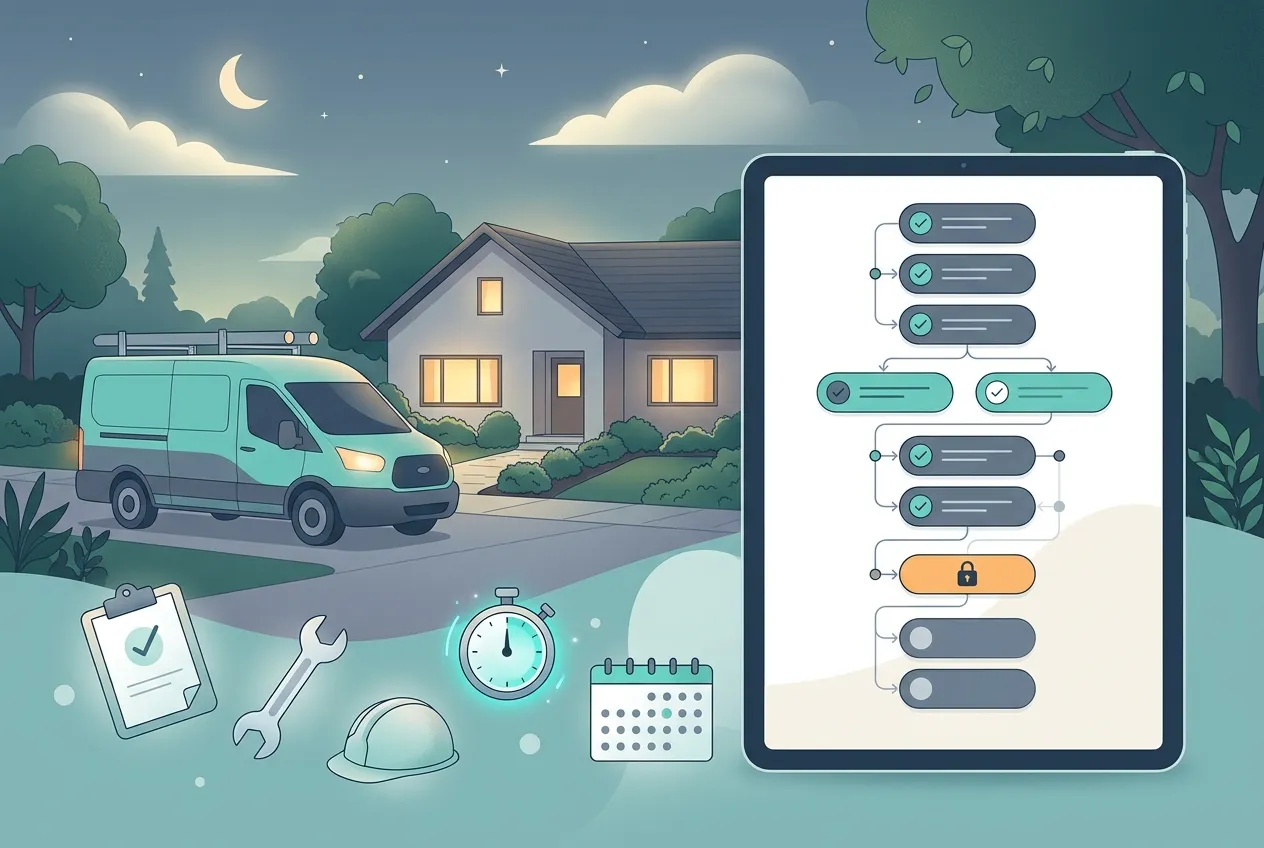
If you would rather not ask, switch on the Morning digest Autopilot playbook and pick the time it should arrive. Like every ZartonAI automation, it is created switched off and only starts when you turn it on, so check the time and switch it on when you are ready.
Let Claude run a scheduled check (optional)
If you use a Claude scheduled task, Claude can check "what's new" since its last run on each round, so nothing is reported twice or missed: new form leads, quotes opened or accepted, invoices paid or overdue, jobs changing stage, low stock and failed automations. When something needs a person, Claude sends one short notice to you, or to whoever handles jobs, estimates, invoices or inventory, in the app and by email as they chose. Those notices never go to customers.
Tips and common mistakes
Tip: use the briefing to fill idle crew. "Free" means nobody has put that person on a job. If the briefing shows someone free while a won job is waiting to start, that is money left on the table. Move the start date up or put them on it.
Tip: run the 7-day digest on Monday mornings. The daily briefing keeps you on top of today; a weekly digest shows the trend: how much came in, how many quotes turned into work, and which jobs are stuck in one stage.
Mistake: trusting the briefing with half-filled records. A job with no crew will not show who is on it, and a stock item with no reorder level will never show as low. Garbage in, silence out.
Mistake: one alert per problem. If you set up a scheduled check, have it send one notice per round that lists everything, not a ping for every invoice. You will read one message; you will mute twenty.
Overdue money is usually the first thing the digest flags. Our guide to invoicing customers and getting paid covers reminders and recording payments.
Do it with Claude
With Claude connected to ZartonAI, the briefing and digest are a sentence away, from your phone in the truck or your desk. Claude reads them, leads with what needs you, and links to the records. Try asking:
"What's happening today? Tell me what needs me first."
"Give me the business digest for the last 7 days."
"Who owes us money, and how late is each one?"
"Who's free tomorrow, and is any won job still waiting to start?"
"Every weekday at 6:30, check what's new since last time and send me one notice with anything that needs me."
Claude only reads to build the briefing. Sending reminders or anything else that reaches customers still needs your go-ahead, and actions must be allowed for the connection in ZartonAI.
FAQ
Is the owner briefing the same as the business digest?
No. The owner briefing is a snapshot of today: who is where, what is on, what is late. The business digest covers a period, from today up to the last 30 days, and adds totals for money in, quotes and jobs, ending with a Needs attention list.
Does the digest send anything to my customers?
No. The briefing and the digest only read your records. Owner notices go to you or your team, never to customers. Payment reminders are only sent when you choose to send them.
Why is something missing from my briefing?
Usually because the record is incomplete: a job without dates or crew, a stock item with no reorder level, or a tool that was never checked out. Fill in the record and it appears next time.
Can my office manager get the alerts instead of me?
Yes. Owner notices can go to the owner or to the people who handle jobs, estimates, invoices or inventory, so the right person sees the right problem.
Start tomorrow knowing exactly what needs you. Try the owner briefing at zartonai.com, then put it on a schedule with Autopilot automations. New to ZartonAI? Start with running jobs from first call to final invoice.






Comments
No comments yet — be the first to share your thoughts.
Join the discussion