How to Set Up Your Pricing with Trade Packs in ZartonAI
Install a starting kit for your trade, then tune your rate card, markup and service build-ups once
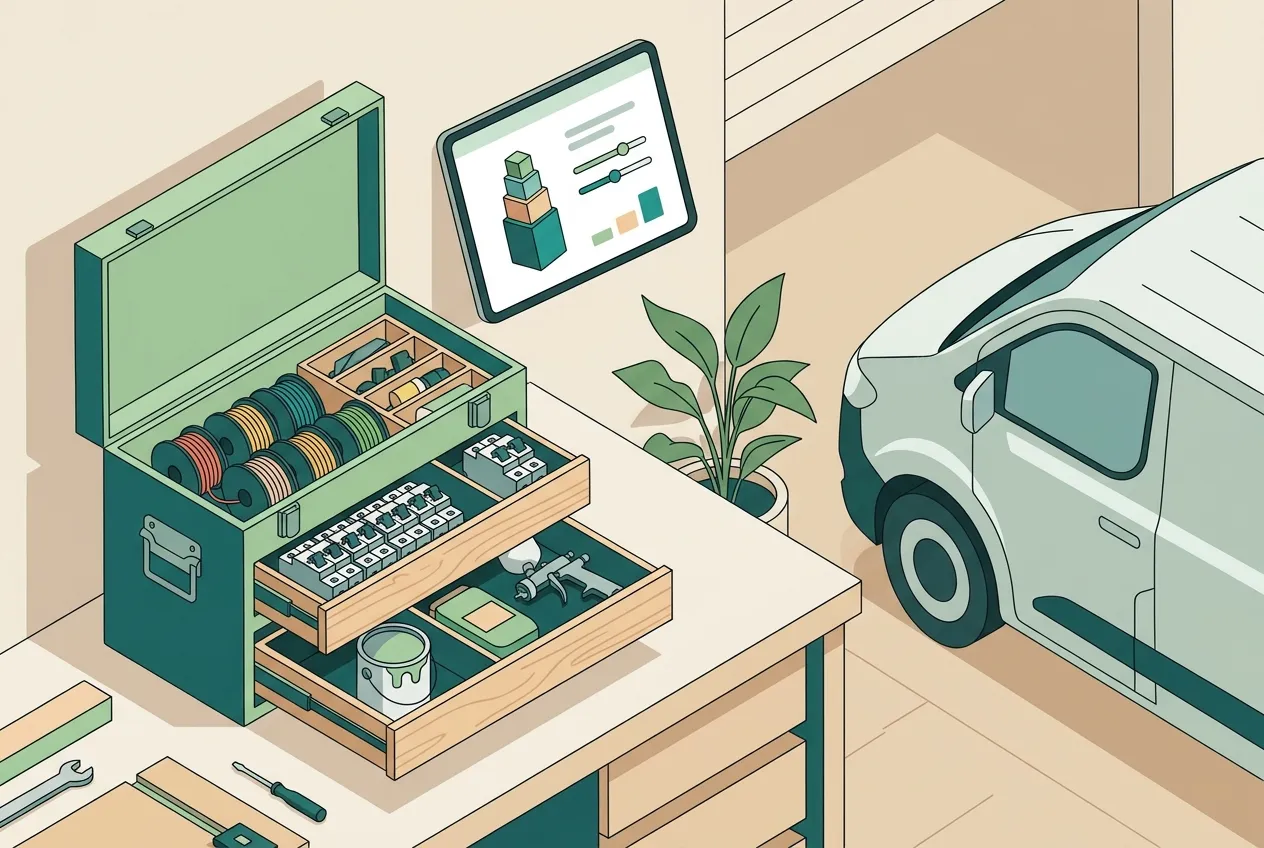
Most new software dies in week one, not because it is bad, but because it starts empty. Before you can send a single quote you are expected to type in every labour rate, every breaker and every bag of filler you sell. Trade packs fix that.
This guide shows you how to set up your pricing with trade packs in ZartonAI: install a ready-made starting kit for your trade, then make it yours by adjusting your labour rate card, your material markup and the “build-up” behind each priced service. Do this once, and every estimate your team writes afterwards comes out priced the same way, from the same numbers.
What a trade pack is (and what it is not)
A trade pack is a starting kit for one kind of business. It is not a template you are locked into — it simply fills the empty shelves so you have something real to edit. Each pack can contain five kinds of things:
| What it adds | What that means for you |
|---|---|
| Labour rates | Named rates such as master, journeyman and apprentice, each with what you charge per hour and what an hour costs you |
| Materials | Common stock items for the trade, ready to pick on an estimate |
| Priced services | The jobs you quote most often, each with a build-up of the labour, materials and equipment it takes |
| Contracts and terms | Starting wording for things like a work agreement, a warranty and permit or storage terms |
| Job checklists | Step-by-step lists your crew can follow on every job of that kind |
Two packs are available today. The Electrician pack covers master, journeyman and apprentice rates; panel, breaker and wire materials; priced services for panel upgrades, EV charger circuits, new circuits, surge protection and service calls; a work agreement, warranty and permit terms; and checklists that include permit and inspection steps. The Auto body pack covers body, refinish, frame and mechanical rates; paint and body materials; priced repairs such as dent repair, bumper and panel refinish, frame measure and pull, scans and alignment; a repair authorization, lifetime workmanship warranty and storage terms; a collision-repair checklist from intake to delivery; and vehicle and insurance-claim details on every job.
How to set up pricing with a trade pack in ZartonAI
- Look at the packs first. The trade pack list shows each pack, what is in it, and how much of it your workspace already has — for example “0 of 27 items” broken down into rates, materials, services, contracts and checklists. That count tells you at a glance whether a pack will add a lot or almost nothing.
- Install the pack for your trade. Installing adds only the rates, materials, services, contracts and checklists you do not have yet. It never overwrites anything you have already changed, so it is safe to run again later — for instance after a new version of the pack adds more services.
- Fix your labour rate card. Open your estimate pricing settings and go through each labour rate. Each one has a name, the charge per hour your customer pays, and the cost per hour to your business. Change the names to the words your crew uses and the numbers to what you really charge. Add a rate if you need one the pack did not include, and remove any you will never use.
- Set your material markup. This is the percent added on top of a stock item’s cost when it goes on an estimate. Set it once here instead of doing the math on every line.
- Decide what happens when stock runs short. Choose whether a shortfall on an estimate only warns you or blocks the estimate from being sent. Shops that hate surprise back-orders usually pick block; shops that order per job usually pick warn.
- Choose how built-up services appear. A service with a build-up can go on the estimate as one line (“Panel upgrade — 200A”) or itemised, showing its labour, materials and equipment underneath. One line keeps quotes short; itemised shows the customer where the money goes.
- Review each service’s build-up. A build-up is the recipe for one of a service: labour (a rate from your card and a number of hours), materials (a stock item and a quantity) and equipment (one of your assets and how many days or hours). ZartonAI shows each service’s built-up price and its cost. Adjust the hours and quantities to how your crew really works, and if you want, make the built-up total the service’s price so the two never drift apart.
- Read the contracts and checklists. Each contract or terms document has a kind (contract, terms, warranty, scope, safety or other), a version, a summary and the full text. Mark the ones the customer must agree to, and the ones to include by default in new proposal packages. Edit the wording to match your state’s rules and your own policies before a customer ever sees it.
- Write one test estimate. Add a built-up service and a couple of materials to a draft estimate and read the total as a customer would. If a number looks off, fix it at the source — the rate, the markup or the build-up — not on the estimate.
Tips and common mistakes
- Treat pack prices as a starting point. They are there so you are not staring at a blank screen. Your market, your overhead and your crew decide your real numbers.
- Fill in the cost side of the rate card. The charge is what the customer sees; the cost is what keeps your margins honest. Leaving cost empty hides how much you actually make on labour.
- Keep build-ups “per one.” A build-up describes one of the service — one circuit, one panel, one bumper. Quantity on the estimate does the multiplying.
- Don’t discount by editing the catalogue. If a tech prices a catalogue item below its catalogue price on an estimate, it needs a reason and a manager’s approval before it can be sent. That is a feature: it keeps one-off deals from becoming your new price list.
- Re-run the pack after big edits without fear. Because installing only adds what is missing, it will not undo your changes.
Once your pricing is set, you will get more out of creating and sending estimates in ZartonAI, keeping parts and materials stock accurate, and checking whether your numbers hold up with job costing.
Do it with Claude
ZartonAI works with Claude through the Zarton connector, so an owner or office manager can set up pricing in plain language. Claude reads your current settings first, tells you what it is about to change, and asks before installing a pack or editing a rate. Try requests like:
“Which trade packs are there, and how much of the electrician pack do we already have?”
“Install the auto body pack, then tell me what it added so I can check the prices.”
“Change our journeyman rate to $115 an hour charge and $58 cost, and add an Apprentice rate at $70 charge, $32 cost.”
“Set material markup to 25%, block estimates when stock runs short, and show built-up services itemised.”
“Show me the build-up for the EV charger circuit, then change it to 5 hours of journeyman labour and make the built-up total its price.”
Learn more on our Works with Claude page.
Frequently asked questions
Will installing a trade pack change prices I already set?
No. A trade pack only adds the rates, materials, services, contracts and checklists your workspace does not have yet. Anything you already changed is left alone.
Which trades have a pack?
Today there is an Electrician pack and an Auto body pack. Other trades can still set up a rate card, markup and service build-ups by hand or with Claude.
What is a service build-up?
It is the recipe for one of a service: labour hours at a named rate, materials from your stock with quantities, and equipment from your assets by days or hours. ZartonAI shows the built-up price and cost, and can make that total the service’s price.
Should built-up services show as one line or itemised?
One line keeps estimates short and simple; itemised shows the labour, materials and equipment underneath. It is a single setting, so you can try both.
Are the contracts in a pack ready to use as-is?
Treat them as starting wording. Read and edit them to match your own policies and local rules, then mark which ones the customer must agree to and which go into new proposal packages by default.
Skip the blank screen. Install the pack for your trade, tune your rates, and send your first properly priced estimate today.
Try it at zartonai.com









Comments
No comments yet — be the first to share your thoughts.
Join the discussion