How to Post Your Work to Social Media in ZartonAI
Connect your business accounts once, then share finished jobs, blog posts and offers to every network with the right link and picture

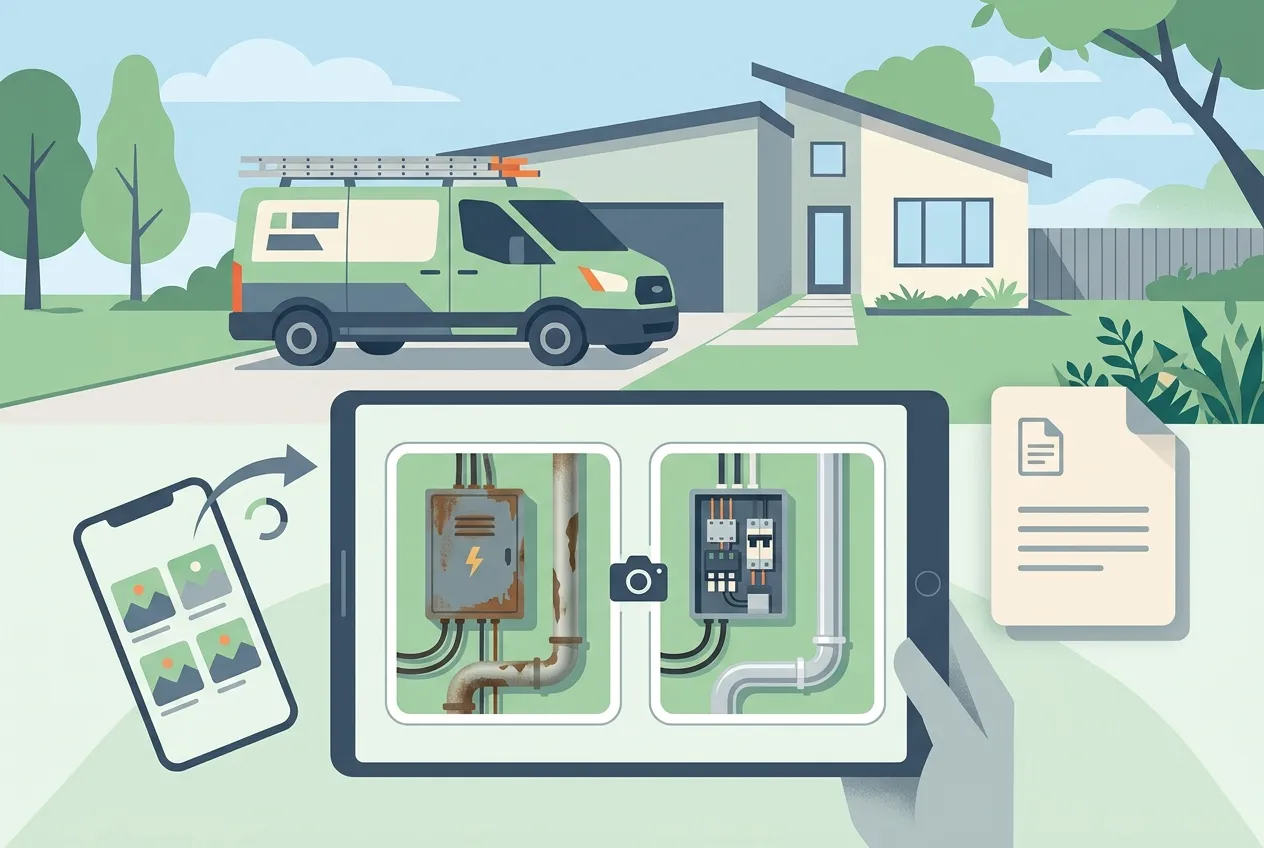
You rewired a whole house last week, the panel looks like a textbook photo, and the customer said it was the best crew they ever hired. Nobody outside that driveway will ever know — because posting about it means opening four apps, copying a link, finding the photo again and remembering your hashtags.
This guide shows you how to post your work to social media in ZartonAI. You connect your business accounts once, then share a blog post, a project or a quick update to LinkedIn, Facebook, Instagram and the rest straight from the place where the work already lives — with the right link and picture attached, and a record of every post kept on the entry.
Why social posting belongs next to your work
For trade and service businesses, social media is word of mouth that scales. A neighbor sees a clean water-heater install, a property manager sees a finished tenant improvement, and the next call comes in. The problem is never the idea of posting; it is the twenty minutes it takes each time.
ZartonAI keeps your website, blog, projects and promotions in one workspace. Because the thing you want to share already has a page, a title, a summary and an image, the post can be built from it in one step instead of being retyped for every network.
Which networks you can post to
You can connect business accounts on these networks and post to any of them, or all of them at once:
| Network | Good for a trade business when you want to… |
|---|---|
| Reach property managers, general contractors and commercial clients | |
| Show finished jobs to homeowners and local community groups | |
| Share before-and-after photos and short clips | |
| X and Bluesky | Post quick updates, tips and storm or outage notices |
| TikTok and YouTube | Publish how-it’s-done videos |
| Answer questions in local and trade communities |
How to post your work to social media in ZartonAI, step by step
- Connect your accounts once. Go to Settings → Social accounts and connect the business accounts you use. Each one then shows its status: ready to post, or needs reconnecting when a network has signed you out. If an account needs reconnecting, fix it there before you try to post.
- Pick something worth sharing. The best posts point to a page on your own website: a blog post, a finished project in your portfolio, a service page or a promotion. When you share an entry like that, ZartonAI uses its live page as the link, its first image as the picture, and its title and summary as the text — so a well-written excerpt and a good photo pay off twice.
- Write the words, or keep the defaults. Leave the text empty to post the entry’s title and summary, or write your own. A line in your own voice (“Finished this 200A panel upgrade in Pasadena today — inspection passed first try”) usually does better than a headline. Add hashtags, separated by commas or spaces.
- Choose where it goes. Pick one or more networks, such as only LinkedIn, or LinkedIn and Facebook. Leave the choice empty to post to every connected account. If you have more than one account on the same network, choose the one by its name or handle.
- Check the link and the picture. The link defaults to the entry’s live page and the picture to its first image. You can swap in another link or another image from your media library if, for example, you want to point people at your booking page or use a different photo of the job.
- Read it once, then post. Posting goes out publicly, right away, on every network you picked. Read the text, link, image and account list one last time — there is no draft step on the network side.
- Find the record on the entry. After it posts, the link to each live post is saved on the entry you shared. Next month you can see exactly where that project was posted without scrolling through four feeds.
Plan posts with the Social Posts list
Besides sharing straight from an entry, ZartonAI has a Social Posts content type for writing posts ahead of time and keeping them organized. Each social post can hold:
- the platform and format (text, image, video, carousel, story, reel, short or poll);
- the text, hashtags and image alt text so people using screen readers know what the picture shows;
- the link in post, plus the title and address of the article it promotes;
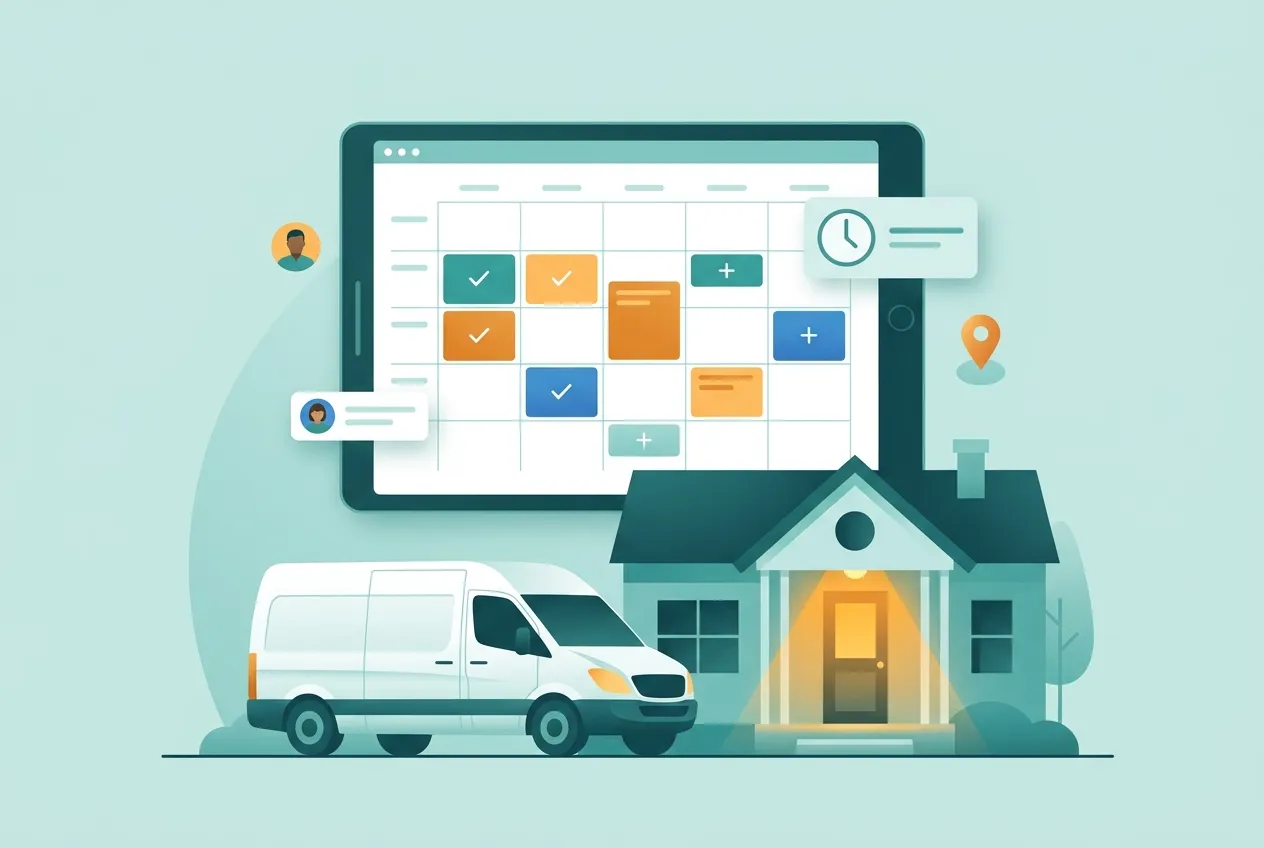
- a scheduled for date to plan when it should go out, and the posted at time once it has;
- an approval status — pending, approved or rejected — so the office can draft and the owner can sign off;
- the live post URL once it is up, and a UTM campaign name so you can tell in your website stats which visits came from which campaign.
A social post has no web page of its own, so always give it a link — usually the blog post, project or offer it is about.
Tips and common mistakes
- Write the excerpt for people, not search engines. When you share without your own text, the summary is the post. One clear sentence about the customer’s problem and your fix beats a list of keywords.
- Put the best photo first. The first image on the entry becomes the post’s picture. Pair this with before-and-after photo reports and you will always have a strong shot ready.
- Ask before you post a customer’s home. Get the customer’s OK, and keep house numbers, plates and faces out of the frame.
- Don’t post to every network by habit. Leaving networks unselected sends to all of them. A commercial job write-up may suit LinkedIn; a dramatic before-and-after suits Instagram and Facebook.
- Use the short link when you need to count clicks. Blog posts in ZartonAI get a short link that counts clicks — handy for flyers, truck wraps and posts where you want to see what people actually opened.
- Reconnect quickly. Networks sign apps out from time to time. If an account shows “needs reconnecting,” nothing will post there until you fix it in Settings.
Do it with Claude
ZartonAI works with Claude through the Zarton connector, so the owner or office manager can share work in plain language. Claude first checks which accounts are ready, then shows you the exact post — text, link, image and which accounts — and only posts after you say yes. Because posting is public, it only works when you have switched on “Allow actions” for the connection. Try requests like:
“Which of our social accounts are connected, and does any need reconnecting?”
“Share our new blog post about tankless water heaters on LinkedIn and Facebook. Write a short intro in a friendly tone and add #plumbing and #waterheater.”
“Draft three Instagram posts for the kitchen remodel project, with alt text, and mark them pending so I can approve them.”
“Post this to LinkedIn only: ‘We’re hiring a journeyman electrician’ with a link to our careers page.”
“Where did we post the Oak Street project, and what are the links?”
New to running your website from ZartonAI? Start with how to publish, undo and roll back website changes, and make sure the people who click through can reach you with website lead capture. Learn more on our Works with Claude page.
Frequently asked questions
Does a post go out right away?
Yes. Posting is public and immediate on every network you choose, so review the text, link, image and accounts before you post. If you want a sign-off step, draft it as a Social Post with its approval set to pending first.
Can I post to just one network?
Yes. Choose one or more networks, such as only LinkedIn. If you leave the choice empty, the post goes to every connected account. With several accounts on one network, pick the account by name or handle.
Do I need a blog post to share something?
No. Sharing an entry is the quickest way, because its link, image and summary are filled in for you, but you can also post your own text with a link and an image of your choice.
Why won’t one of my accounts post?
It most likely needs reconnecting. Networks sometimes sign apps out. Open Settings → Social accounts, reconnect it, and it will show as ready to post again.
How do I know which posts bring in visitors?
Give a Social Post a UTM campaign name so visits from it can be told apart in your website stats, and use a blog post’s short link, which counts clicks.
Your best work deserves an audience. Connect your accounts and share your next finished job from ZartonAI in under a minute.
Try it at zartonai.com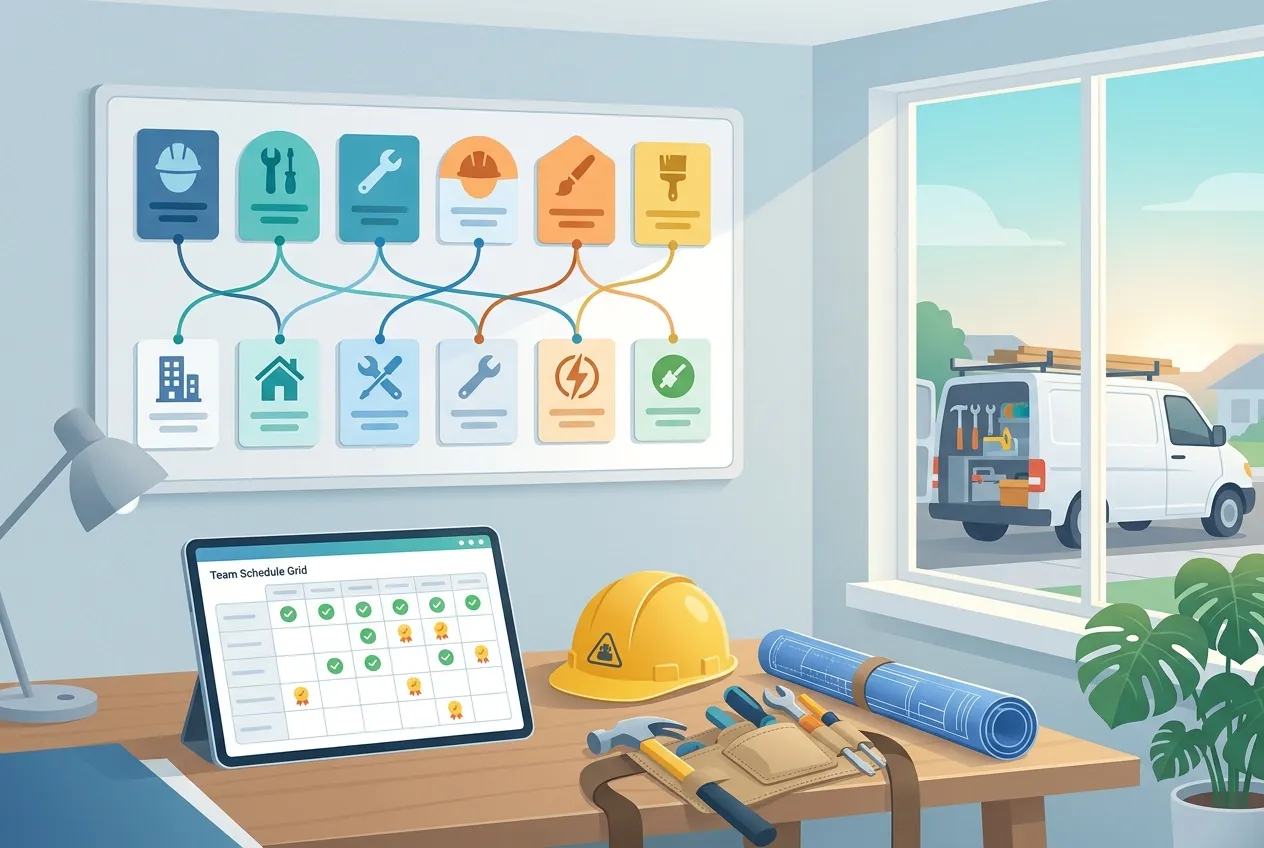




Comments
No comments yet — be the first to share your thoughts.
Join the discussion