How to Organize Team Tasks and Job Work Plans in ZartonAI
Office to-dos and every job’s step-by-step plan on one board — with owners, due dates, dependencies and reports that write themselves

“Did anyone order the breaker panel?” “Who was calling the inspector back?” In most trade businesses the to-do list lives on a whiteboard in the shop, a sticky note on the dash and three different text threads — and the thing that slips is always the one nobody wrote down.
This guide shows you how to use the ZartonAI task board to keep every to-do in one place: office work like chasing a permit or renewing a license, and the step-by-step work plan of each job. You will add tasks, tie them to jobs, set due dates and dependencies, assign people, and see at a glance what is overdue, stuck or overloaded.
Why a task board beats the whiteboard
A whiteboard tells you what someone wrote on Monday. It does not tell you what is late, who is holding it, or which job it belongs to. In ZartonAI every to-do is a work item with its own key (a short code such as ZAR-12), a state, a priority, an owner and dates. Items can belong to a job, wait on each other, and roll their progress up to a bigger piece of work — so the board always shows the real picture, not last week’s.
The same board holds more than plain tasks. Problems reported on a tool or vehicle — a cracked windscreen, a generator that won’t start — arrive as incidents linked to that asset, so repairs get tracked like any other work.
How to use the task board in ZartonAI, step by step
- Add the work as a clear, one-line item. Open Tasks and create an item. Write the title so it makes sense on its own in a column: “Call county about rough-in inspection for Elm St” beats “Inspection.” Choose a type — most of your work will be a task, a subtask or a milestone; bigger pieces can be an epic or story, and problems an incident. New items start in the backlog unless you pick another state.
- Tie it to the job it is for. Link the item to a job (for example JOB-14) and it shows up in that job’s work plan. The job page then shows its milestones and tasks with their progress, so the office and the crew see the same plan. Office-only work — insurance renewals, ordering business cards — simply stays unlinked.
- Set priority, an estimate and a due date. Priority runs from lowest to urgent. Add a rough estimate in hours: without one, the item is left off the timeline and can’t count toward anyone’s workload. Add a due date, and a start date if the work cannot begin before a certain day. Labels (free tags like “permit” or “warranty”) make it easy to filter later.
- Break big work into pieces. A remodel or a panel upgrade is really several steps. Break an item into up to 20 children in one go — “demo,” “rough-in,” “inspection,” “drywall,” “trim-out” — each with its own estimate. The parent’s progress rolls up from its children, so you see how far along the whole job is without asking.
- Say what waits on what. Link items so one blocks another: drywall is blocked by the rough-in inspection. A dependency orders the timeline, and ZartonAI will not let the waiting item be marked done while the work it depends on is still open. Links that would make two items wait on each other forever are refused. Use “relates to” when you only want a note connecting two items.
- Assign it. Put one or more people on an item. Everyone newly added is told, so “I didn’t know that was mine” stops being an excuse. Names must match people in the project — anyone who doesn’t match is reported back, and the card stays unassigned until you fix it.
- Move it across the board as work happens. Each item sits in one state: backlog, to do, in progress, blocked, in review or done. Move it along, update the hours remaining, and leave comments — the reason something hasn’t moved is usually in the comments, and they stay on the item with its files and history.
- Check what is late, stuck or overloaded. Filter the board by person, by “my work,” by unassigned, by label, or by due window: overdue, this week, next week or undated. For a deeper check, ZartonAI looks for contradictions in the plan — someone holding more hours than the week allows, dates the estimates can’t meet, items scheduled before what they wait on, work “in progress” that nobody has touched, and parents marked done with open work underneath — and says what to do about each.
- Get the summary without writing it. Run a daily standup, daily digest, daily risk report, or a weekly summary, breakdown or velocity report. Every number comes from the work itself. Name who should receive each report once on the reports screen, and it can be sent to them. Charts show where the work sits, the load per person, progress on bigger pieces, and work raised against work finished.
What each state means on the board
| State | Use it when |
|---|---|
| Backlog | It needs doing some day, but isn’t planned yet |
| To do | It is planned and ready to start |
| In progress | Someone is working on it now |
| Blocked | It is waiting on parts, a permit, an inspector or the customer |
| In review | The work is done and someone needs to check it |
| Done | Finished — and nothing it depends on is still open |
Tips and common mistakes
- Always add an estimate. Items with no hours are invisible to the timeline and to workload checks, so a crew can look free when it isn’t.
- Use “blocked” honestly. A task left “in progress” while you wait on the supply house hides the real holdup. Blocked items are easy to spot and chase.
- Don’t delete and recreate. If work belongs in another project, move it. It keeps its comments, files, links and history, gets a new key, and the old key still finds it.
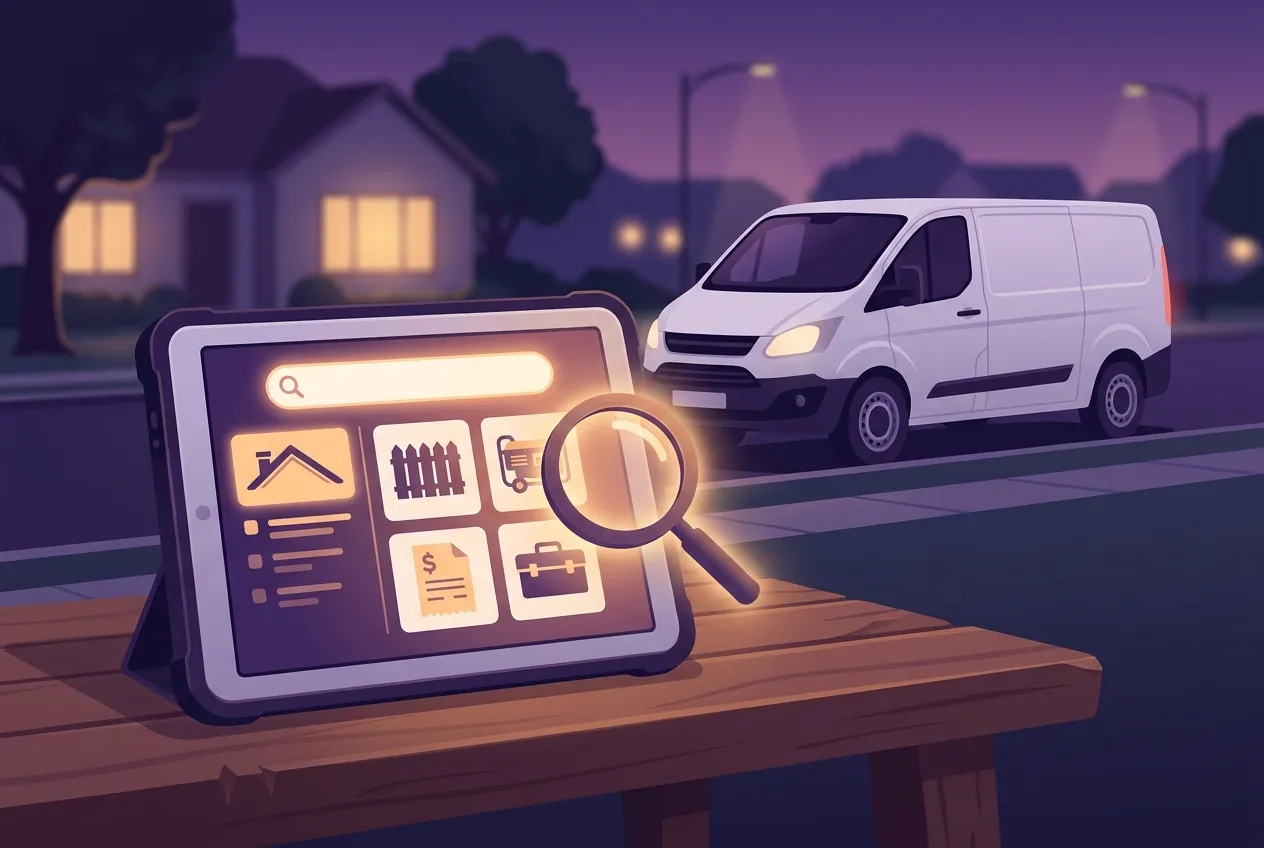
- Search by meaning when you forget the name. Nobody titles an item the way they describe it later. Search for “the thing about the leaking flex line” and the board finds the closest matches. Treat “probable duplicate” warnings as a hint to check, not a fact.
- Close the loop with the job. When a job’s work plan is all done, it’s the moment to move the job along and bill it — see how to run jobs from first call to final invoice.
Do it with Claude
ZartonAI works with Claude through the Zarton connector, so an owner or office manager can manage the board in plain language. Claude looks items up by their key before changing them, never invents a key, and repeats it back when it creates something. If an item can’t be marked done because it is still waiting on other work, Claude tells you instead of pretending. Assigning people and sending reports reach your team, so they only work when “Allow actions” is switched on for the connection. Try requests like:
“Add a task to JOB-14: call the county to book the rough-in inspection, high priority, due Thursday, 1 hour.”
“Break the Elm Street remodel into demo, rough-in, inspection, drywall and trim-out, and make drywall wait on the inspection.”
“What’s overdue, and who is holding it?”
“Give the permit task to Maria and mark it in progress.”
“How did we do this week? Run the weekly summary.”
“Is anyone overloaded next week?”
In Claude, the board, “my tasks” and overdue work come back as a card where you can move an item without leaving the chat. See more on our Works with Claude page.
Frequently asked questions
Can I keep office to-dos and job tasks on the same board?
Yes. Link a task to a job and it appears in that job’s work plan; leave it unlinked and it is simply office work on the board.
Why won’t ZartonAI let me mark a task done?
It is waiting on another item that is still open. Finish or unlink the work it depends on first, and the task can then be marked done.
Do people know when I assign them something?
Yes. Anyone newly added to an item is told. Names are matched against people in the project, and any name that doesn’t match is reported back rather than guessed.
Why is a task missing from the timeline?
It has no estimate. Add a rough number of hours and it appears on the timeline and counts toward that person’s workload.
Do tool and vehicle problems show up here?
Yes. Reporting damage, a breakdown or a safety issue on an asset creates an incident in Tasks linked to that asset. Read more in how to track tools, vehicles and equipment.
Related reading
Wipe the whiteboard for good. Put this week’s to-dos and your next job’s work plan on the ZartonAI task board.
Try it at zartonai.com









Comments
No comments yet — be the first to share your thoughts.
Join the discussion