How to Build Custom Automations in ZartonAI
Turn the rules in your head into automations that react to stock, quotes, payments and schedules — tested while switched off, with Claude on hand for the judgment calls
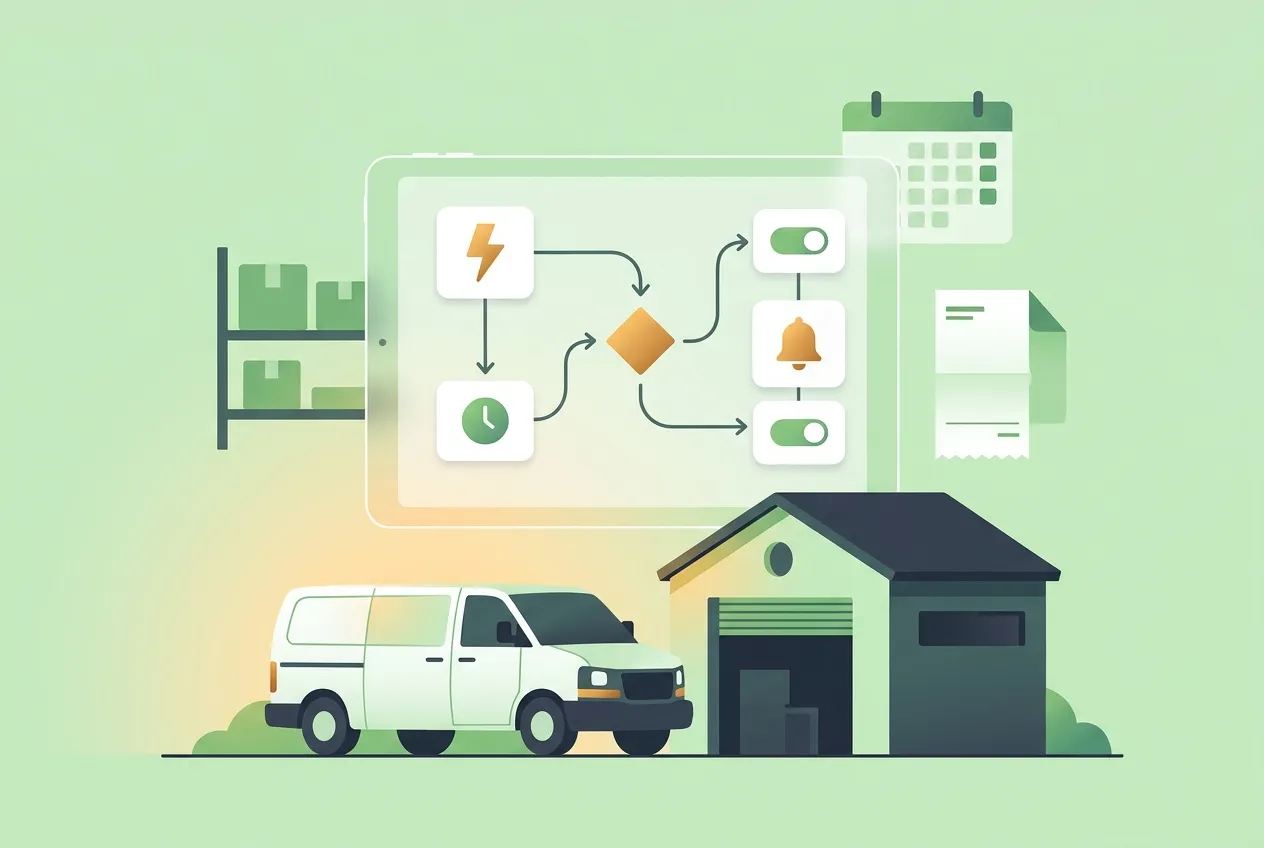
Every shop has its own unwritten rules. "If we run low on 12/2 wire, tell Dave before Friday." "If a customer declines a quote, I want to know why within a day." "If a card payment gets disputed, call me, don't email me." Those rules usually live in the owner's head, which means they only work when the owner remembers them.
This guide shows you how to build custom automations in ZartonAI so those rules run on their own. You pick what starts the automation, add the steps it should take, test it while it is switched off, and then let it work in the background. It's the next step after the ready-made Autopilot playbooks, for the jobs that are particular to your business.
Autopilot or a custom automation?
ZartonAI comes with eight ready-made Autopilot playbooks for the most common follow-ups: replying to leads, chasing quotes, drafting deposit and final invoices, chasing overdue invoices, asking for reviews and a morning digest. If one of those does what you need, use it. It's already set up and you only have to adjust a few options.
A custom automation is for everything else. It has the same three parts every time:
| Part | What it means | Example |
|---|---|---|
| Trigger | What starts it: a business event, a schedule, or you pressing run | Stock running low |
| Steps | What it does, in order | Notify the person who handles inventory |
| Conditions (optional) | A check that decides whether the rest goes ahead | Only if the event mentions copper wire |
How to build a custom automation in ZartonAI, step by step
Write the rule as one sentence
Before you open anything, finish this sentence: "When ___ happens, do ___." For example: "When a customer declines an estimate, make a follow-up task for the office and tell me." If you can't say it in one sentence, it's probably two automations.
Open Automations and start a new one
In your ZartonAI workspace, go to Automations. The list shows every automation you have, whether it is on or off, what starts it, whether it may reach customers and how its last run went. Start a new automation and give it a name your team will understand at a glance, like "Declined quote → office follow-up".
Choose what starts it
Pick one of three kinds of trigger. A business event is something ZartonAI already sees happen: a form submitted, a lead rated, an estimate sent, viewed, accepted or declined, a proposal accepted or declined, an invoice sent, viewed, paid or gone overdue, a job created or changing stage, stock running low, a tool overdue back or reported with a problem, a membership started, renewed or past due, a payment refunded or disputed, or another automation failing. A schedule runs it daily, every weekday, weekly or hourly at the time you choose. Run by hand means it only starts when you (or Claude) start it.
Add the steps in order
Steps run one after another, top to bottom. The ones most trade businesses use are: Notify people (tell the owner or the team that handles jobs, estimates, invoices or inventory), Wait (a number of hours or days), Send email, Run a skill (do something in ZartonAI, such as drafting an invoice or creating a task), Post to social, and Wake a Claude routine. There are also steps for creating or updating content, generating images, searching the web and working with files, but you rarely need them for day-to-day rules.
Narrow it down with a condition
Add a Condition step when the automation should only carry on in some cases. A condition compares two things (equals, doesn't equal, contains, greater than, less than). The steps after it run only when the condition is true; otherwise the run quietly ends. For example, "when a form is submitted" fires for every form on your site, but a condition that checks the event contains "Request a quote" keeps your automation to quote requests only.
Fill each step with details from the event
Steps can use what the trigger knows: a short summary of the event and details such as the customer, the estimate, the invoice or the job. That's how a notification can say "Delgado Dental declined EST-41" instead of "something happened." Keep messages short: what happened, why it matters, and the link.
Save it and review it while it's off
Every automation you make starts switched off. Read it top to bottom once more. Anything that writes to customers, like an email step, stays a draft until the owner allows that automation to act, and that permission is only given inside ZartonAI. The Automations list flags each one that may reach customers, so you can see it at a glance.
Switch it on and check the first runs
Turn it on. Every run is logged with each step's result, so you can open a run and see exactly which step worked, which was refused and why. If something looks wrong, switch it off, fix the step and turn it back on.
Five automations worth building first
- Low stock → tell the buyer. Trigger: stock running low. Step: notify the inventory people. Pairs well with tracking your parts and materials in ZartonAI.
- Declined estimate → follow-up task. Trigger: estimate declined. Steps: run a skill that creates a task for the office, then notify the owner.
- Payment disputed → owner, right now. Trigger: payment disputed. Step: notify the owner with the link to the invoice.
- Tool overdue back → remind the crew lead. Trigger: asset overdue. Step: notify the people who handle jobs.
- Monday morning check. Trigger: weekly schedule, Monday at 6:30. Step: wake a Claude routine to read the week ahead and send you what needs attention.
Tips and common mistakes
Tip: one rule, one automation. Small automations are easier to name, test and switch off. "Low stock → notify" and "Declined quote → task" should be two automations, not one with a dozen conditions.
Tip: let ZartonAI do the fixed part and Claude do the thinking. An automation is perfect for "the same thing every time." Reading a long customer email, deciding what matters this week or writing a careful reply needs judgment. Use the Wake a Claude routine step for that, and let Claude hand the result back.
Mistake: messaging customers in a loop. Never build an automation that can write to the same customer again and again. One message per customer per event is the rule.
Mistake: a schedule nobody checks. An hourly automation that notifies the owner every hour quickly gets ignored. Choose the slowest schedule that still catches the problem in time.
Do it with Claude
If you've connected Claude to ZartonAI through the Zarton connector, you can describe the rule in plain language and Claude builds it. Claude reads how automations work in your workspace first, suggests an Autopilot playbook when one fits, and makes everything switched off so you can check it. It turns an automation on only when you say so, and it can never give an automation permission to email customers or publish. That stays your call inside ZartonAI.
Things you can ask:
"When stock runs low, tell whoever handles inventory, with the item and the link."
"When a customer declines an estimate, make a task for the office to call them and let me know."
"What's automated right now, and did anything fail this week?"
"Why did last night's run of the Monday check fail?"
"Switch the low-stock automation on."
It also works the other way. A ZartonAI automation can wake a Claude routine the moment something happens, for example a new website enquiry, and Claude can start an automation with what it worked out, so the fixed steps still run the same way every time. If leads are your starting point, see how to capture, rate and answer website leads.
Frequently asked questions
Do I need to know how to code to build an automation?
No. You choose a trigger and add steps such as notify, wait, condition and run a skill. If you'd rather not build it yourself, describe the rule to Claude and it builds it switched off for you to review.
Can an automation email my customers without me knowing?
Not unless you allow it. Every automation starts off, emails and invoices to customers stay drafts until the owner gives that automation permission inside ZartonAI, and the list shows which automations may reach customers.
What happens when a step fails?
The run is logged with each step's status and error. You can open the run to see which step failed and why, or ask Claude to explain it. You can also build an automation that tells you whenever another automation fails.
Can an automation run at a set time instead of on an event?
Yes. Choose a schedule trigger and set it to run daily, every weekday, weekly or hourly at the time you pick.
Get the rules out of your head and into your business. Build your first custom automation in ZartonAI today.
Try it at zartonai.com











Comments
No comments yet — be the first to share your thoughts.
Join the discussion