How to Keep a Customer Communication Log in ZartonAI
Calls, texts, emails and site conversations on the customer and the job — so anyone in the office can pick up where the last person left off
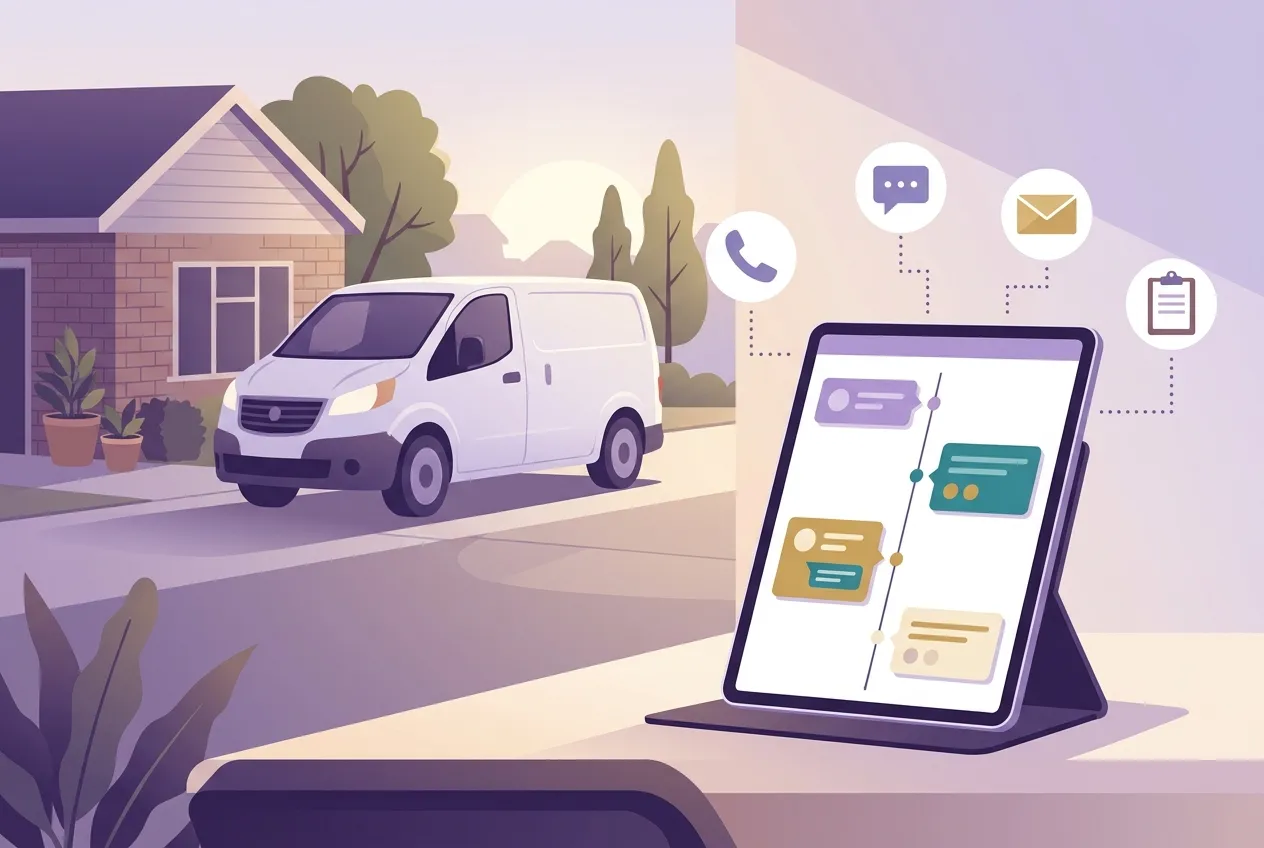
“I told your guy on the phone the side gate sticks.” “Did anyone answer her email about the second outlet?” “He says we agreed to waive the trip charge — did we?” Every trade business has these moments, and they almost always come down to one thing: the conversation happened, but nobody wrote it down where the rest of the team could see it.
This guide shows you how to keep a customer communication log in ZartonAI. You will log calls, texts, emails and on-site conversations on the customer’s record and the job they are about, match incoming emails to the right customer and job, check what was already sent before writing again, and keep spam out of your customer list — so anyone in the office can pick up a customer where the last person left off.
Why a communication log pays for itself
Electricians, plumbers, HVAC techs, body shops and contractors talk to customers on every channel at once: a call to the owner’s cell, a text to the tech, an email to the office, a chat in the driveway. Each one holds a promise — a time, a price, a change in scope — and each one lives in a different person’s phone.
When that history is scattered, the costs are real. Customers repeat themselves and get frustrated. Two people answer the same email with two different answers. A disputed invoice turns into “he said, she said.” A communication log puts every conversation in one place, on the customer and the job, with a one-line summary of what was asked or agreed.
How to log customer communications in ZartonAI, step by step
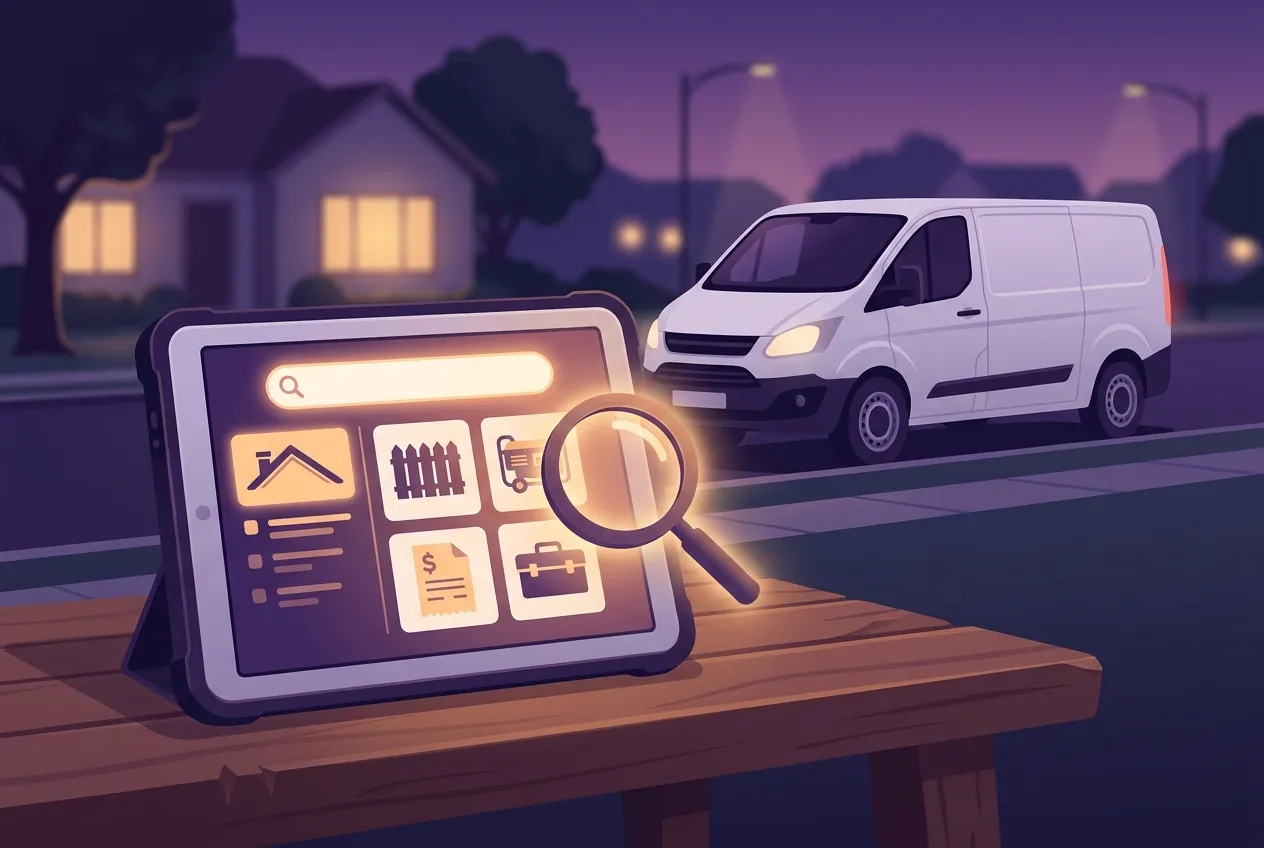
- Find the right customer first. Look the person up by name, email or phone. Their customer record shows their contact details, their sites, how many jobs they have had and their latest website enquiry. If you only remember the job, describe it — “the furnace on Maple” — and ZartonAI finds the closest matching jobs and customers by meaning, not just exact words.
- Choose the channel and direction. Every entry in the log is one conversation. Pick the channel — email, call, text, meeting or note — and the direction: in when the customer reached out, out when your business did. That simple split lets you see at a glance whether you are waiting on them or they are waiting on you.
- Write a one-line summary. This is the most important field. Say what the customer wants or what was agreed, in plain words: “Wants a quote for a second EV charger in the garage” or “Agreed to move the install to Thursday; customer will leave the side gate unlocked.” Add the subject and the full message underneath if you have it, along with who it was from and to, and when it happened.
- Attach it to the job. If the conversation is about a specific job, link it to the job number (for example JOB-12). The entry then sits on both the customer’s record and that job, so the crew lead and the office see the same history.
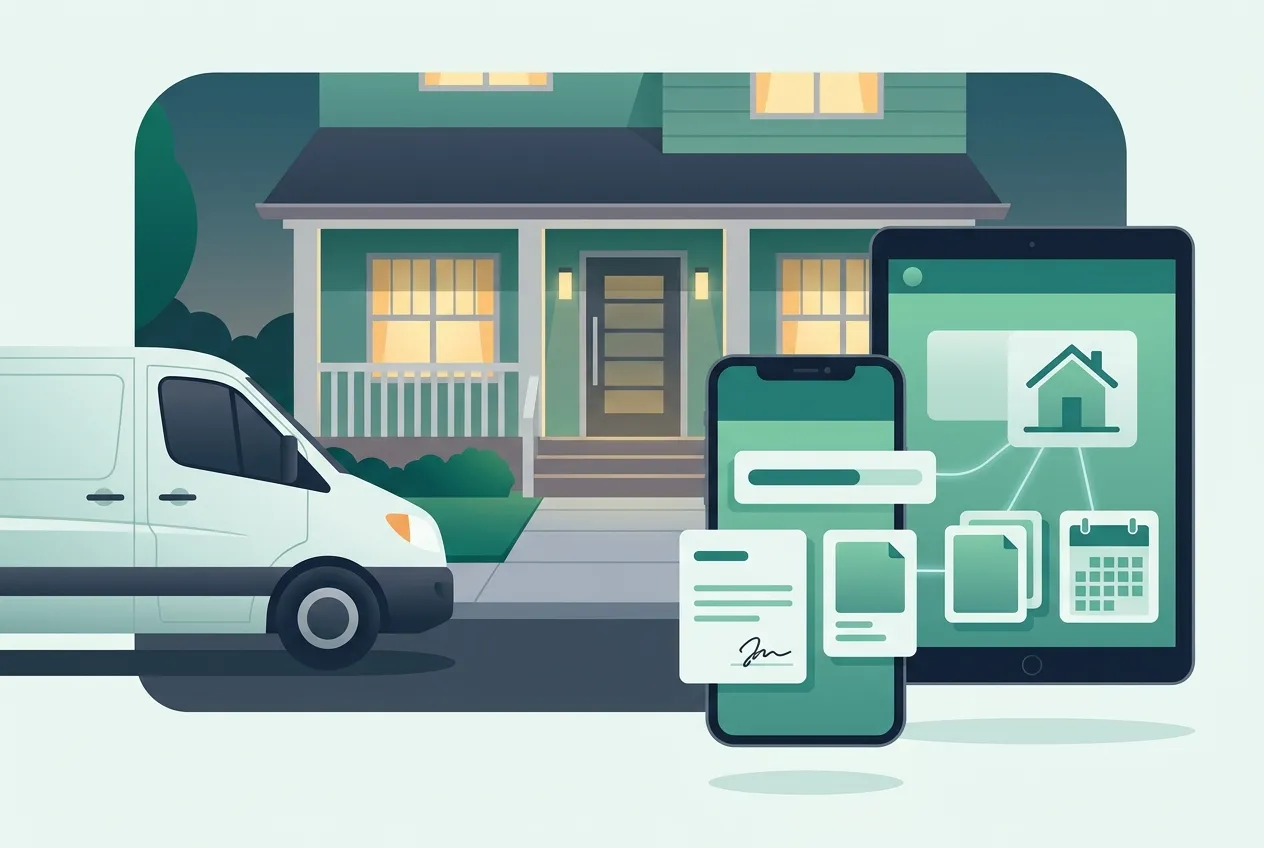
- Match incoming emails to customers and jobs. When an email comes in to your Gmail or Outlook, ZartonAI can work out who it is from — by email address, company domain or name — and which job it is about, including any estimate, invoice or job numbers mentioned in the message and their current status. It also tells you whether that email has already been logged, so the same message never lands in the log twice. A sender who is not yet a customer is flagged as new; they are only added as a customer when you say so.
- Check the history before you reply. Before writing to a customer again, look at the emails already sent to them from your workspace — drafts, scheduled, sent and any that failed. It takes ten seconds and saves the awkward “as I mentioned yesterday” reply.
- Draft the reply, then send or schedule it. Write the answer as a draft first. Nothing goes out until you send it, and you can schedule it for a better time, like 8 a.m. tomorrow instead of 11 p.m. tonight. A scheduled email sends on its own. Emails sent from your workspace show up in that customer’s email history, so the next person can see exactly what was said.
- Keep spam out of the record. When a “customer” turns out to be a sales pitch, a scam or a bot, mark them as spam. They leave your customer list, your lead counts and your daily digest, any reply drafted for them is cancelled, and the same sender’s next enquiry arrives already marked. If you got it wrong, undo it and they come straight back.
Which channel to pick
| Channel | Use it for | Example summary |
|---|---|---|
| Call | Phone conversations, in or out | “Customer called about water under the heater; booked service call for Tuesday AM” |
| Text | Messages to or from a tech’s or the office phone | “Tech texted ETA 30 min; customer confirmed someone is home” |
| Emails from your inbox | “Asked if the estimate includes haul-away — it does, replied” | |
| Meeting | Site walkthroughs and sit-down conversations | “Walkthrough: customer chose the Better option, wants work done before the 20th” |
| Note | Anything worth remembering that is not a conversation | “Prefers texts to calls; dog in the back yard” |
Tips and common mistakes
- Log promises, not small talk. Dates, prices, scope changes and complaints belong in the log. “Nice chat about the weather” does not.
- Write the summary for someone who was not there. “Discussed job” tells the next person nothing. “Customer wants the panel moved 3 ft left; we said it adds about a day” tells them everything.
- Log it before you leave the driveway. A conversation logged an hour later is accurate. One logged on Friday is a guess.
- Always link the job when there is one. An entry only on the customer is fine for general notes; an entry about work belongs on the job too.
- Don’t mark a cold lead as spam. Spam is for pitches, scams and bots. A real person who just isn’t ready yet should stay in your customers, rated cold.
Do it with Claude
ZartonAI works with Claude through the Zarton connector, and this is one of the places it saves the most time. If Claude is also connected to your Gmail or Outlook, it can read your recent emails, match each one to the right customer and job, and log it with a one-line summary — skipping anything already logged and asking before treating a new sender as a customer. Logging sends nothing to anyone. Sending an email only happens after you have seen the draft and said so, and only when “Allow actions” is switched on for the connection. Try requests like:
“Go through this morning’s emails, match them to customers and jobs, and log the ones about work.”
“Log a call with Dana Price on JOB-14: she wants the install moved to Thursday and will leave the side gate open.”
“What have we already emailed the Okafors this month?”
“Draft a reply to Ben confirming Thursday at 9 and schedule it for 8 a.m. tomorrow.”
“That ‘SEO agency’ enquiry is spam — mark it.”
Learn more on our Works with Claude page.
Frequently asked questions
Does logging a conversation send anything to the customer?
No. Logging only records the conversation on the customer and job. Emails go out only when you send a draft yourself or schedule it.
What if the same email gets logged twice?
Each email is logged with its mailbox message id, and ZartonAI checks that id before logging, so the same email is not logged a second time.
Will someone who emails me automatically become a customer?
No. When an email comes from someone who is not in your customers, they are shown as a new sender. They become a customer only when you say so.
What happens when I mark someone as spam?
They are removed from your customer list, lead counts and digest, any reply drafted for them is cancelled, and their next enquiry arrives already marked. You can undo it at any time.
Related reading
- How to Capture, Rate and Answer Website Leads in ZartonAI — where many customer conversations start.
- How to Run Jobs from First Call to Final Invoice in ZartonAI — the job record your log attaches to.
- How to Create and Send Estimates in ZartonAI — when the conversation turns into a price.
Never ask “who talked to this customer?” again. Put every call, text and email on the job in ZartonAI.
Try it at zartonai.com

Comments
No comments yet — be the first to share your thoughts.
Join the discussion