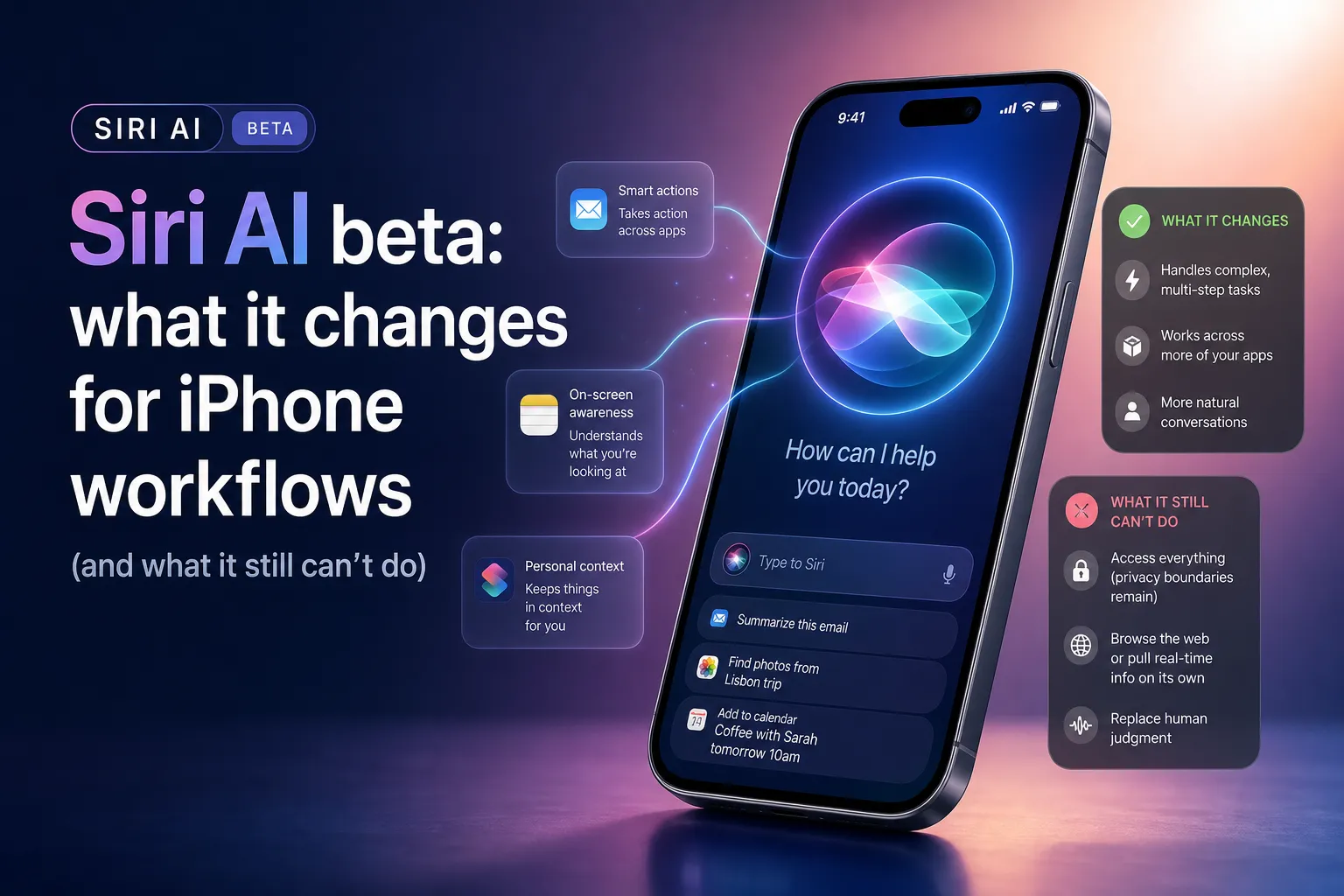
The Siri AI beta is Apple’s most meaningful attempt in years to make Siri feel less like a voice-controlled remote and more like a workflow assistant. In practice, the beta is less about “a smarter Siri” in the abstract and more about new interaction patterns: you can ask in more natural language, get better-written outputs, and chain small tasks together with fewer rigid commands. But it’s still a beta—accuracy varies, app coverage is uneven, and privacy choices matter because some requests may require cloud processing.
This hands-on guide breaks down what’s actually new versus classic Siri, seven high-signal everyday use cases, where things break, how to verify results, and which settings you should review before you rely on it. Source: Google News RSS item.
What’s actually new in the Siri AI beta vs. classic Siri
Classic Siri is at its best when you use well-known, narrowly-scoped commands: set a timer, call a contact, add a reminder, start a workout. The Siri AI beta aims to reduce the “command syntax tax” by improving how Siri interprets intent and by producing higher-quality language output when you ask it to write, summarize, or rephrase.
In everyday use, the biggest changes generally show up in three areas:
- More flexible language: You can speak more like you would to a person and still get a relevant result, especially for drafting and summarization-style requests.
- Better text generation: When you ask for a message draft, a rewrite, a shorter version, or a more polite tone, outputs tend to be more structured than classic Siri’s dictation-first approach.
- Workflow glue: The beta is positioned to help with multi-step tasks (e.g., “summarize this, then remind me later”), but the reliability depends on the app and the specific action.
What hasn’t changed: Siri still cannot “do everything on your phone.” Many actions remain constrained by app permissions, supported intents, and the system’s safety rules. When in doubt, assume it can help you prepare an action (draft, summarize, suggest) more consistently than it can execute complex, cross-app sequences.
Seven high-signal use cases (with practical patterns)
These are the patterns that tend to deliver real daily value without requiring you to fight the beta’s limits. Each includes a “how to ask” template and a verification step you should build in.
1) Fast summaries you can act on
Pattern: Turn long text into a short brief plus next steps.
Try: “Summarize this in 5 bullets and list any action items.”
Verify: Scan the source text for names, dates, and numbers. Summaries are where AI can sound confident while missing a key constraint.
2) Message drafting that matches tone and context
Pattern: Draft a reply with a specified tone, then edit before sending.
Try: “Draft a friendly reply: I can do Thursday after 3, or Friday morning. Keep it under 60 words.”
Verify: Confirm the time window and any commitments. Don’t treat a draft as an agreement—treat it as a starting point.
3) “Rewrite” as a productivity multiplier
Pattern: Convert rough notes into a clean message, email, or checklist.
Try: “Rewrite this as a clear checklist with headings.”
Verify: Ensure nothing sensitive was added or inferred. If your notes include private details, consider whether the request might be processed off-device.
4) App actions when you already know the target
Pattern: Ask for a single, concrete action in a specific app.
Try: “Create a reminder called ‘submit expense report’ for tomorrow at 9 AM.”
Verify: Open Reminders and confirm the due date/time and the correct list. Time parsing is a common failure mode.
5) Smarter reminders: capture + context
Pattern: Add a reminder with a note, link, or context cue.
Try: “Remind me to follow up on the proposal and include: ‘ask about timeline and budget.’”
Verify: Check that the note content is attached and not truncated. If you rely on it later, details matter more than the reminder title.
6) Meeting prep from scattered snippets
Pattern: Turn a few pasted messages into an agenda and questions.
Try: “From this text, create a short meeting agenda and 5 questions to ask.”
Verify: Confirm the agenda aligns with what was actually said. AI can over-structure and invent a “plan” that wasn’t agreed to.
7) Personal “micro-automation” through consistent prompts
Pattern: Use repeatable prompts like macros: same format, different content.
Try: “Turn this into: (1) one-sentence summary, (2) key risks, (3) next action, (4) draft reply.”
Verify: Treat the “risks” section as brainstorming, not truth. It’s useful for thinking—dangerous for facts.
Where accuracy breaks down (and how to verify fast)
In beta assistants, failures tend to cluster in a few predictable places:
- Dates and times: “Next Friday,” time zones, and relative phrasing can drift. Always open the created event/reminder and confirm.
- Names and entities: Similar contact names or ambiguous references (“tell Alex…”) can route to the wrong person. Confirm the recipient before sending.
- Overconfident summaries: Summaries may omit caveats or misread tone. Cross-check the original for constraints and any “must/should” language.
- Multi-step requests: The model may complete the first step and silently fail the second, or it may produce text instead of executing an action.
Verification workflow: build a habit of “trust, then inspect.” If Siri AI creates something (a reminder, a message, a note), open the destination app immediately. If Siri AI generates text, scan for: (1) numbers, (2) dates, (3) names, (4) commitments.
Settings to review: permissions, on-device vs. cloud, and data exposure
The privacy “gotcha” with AI assistants is that not every request is equal. Some tasks may be handled on-device, while others may require server-side processing depending on complexity, language generation, or feature design. As a result, you should review settings in three buckets:
- Siri & Search permissions: Which apps can surface content to Siri, and which apps Siri can interact with. Tighter permissions reduce accidental exposure.
- App-level access: Messaging, contacts, calendars, reminders, photos, and notes are high-risk surfaces. If you wouldn’t want a summary of that data to leak, don’t grant broad access.
- Cloud processing expectations: If the beta routes some requests to the cloud, assume the content of your prompt may leave the device. Avoid pasting sensitive identifiers (account numbers, health details, confidential work info) into generative prompts unless you’re confident about the processing path.
Practical rule: use the Siri AI beta for structure (formatting, rewriting, checklists) more than for private content. When you do use private content, keep prompts minimal and avoid including unnecessary context.
Implications for developers and support teams
For developers, the Siri AI beta raises the bar on what users will expect: fewer rigid phrases, more intent-based actions, and more natural “do this with that” requests. If your app has supported system intents and well-defined actions, you’re more likely to benefit from the assistant’s improved intent interpretation. If your app relies on custom, non-standard flows, users may hit a wall and blame “Siri” rather than the app’s integration surface.
For support teams, expect a new category of tickets: “Siri did the wrong thing” or “Siri wrote something I didn’t mean.” The best mitigation is education and guardrails:
- Teach verification: encourage users to confirm recipients, dates, and created items.
- Document known limits: be explicit about which actions are supported and which are not.
- Privacy guidance: provide a clear checklist of permissions and recommended settings for sensitive environments.
Bottom line
The Siri AI beta can meaningfully improve iPhone workflows when you treat it as a drafting, summarizing, and “workflow glue” layer—not as an omniscient agent. Use it to compress information, generate first drafts, and create reminders quickly. Verify anything involving time, people, or commitments, and review permissions so convenience doesn’t quietly expand your data exposure.